our blog

How to Show or Hide Tags in Trados Studio

How to Show or Hide Tags in Trados Studio - 1

Be careful with tag appearance in Trados Studio!

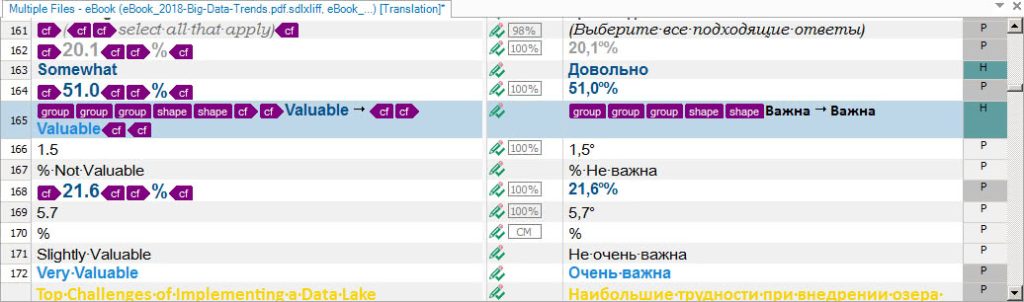
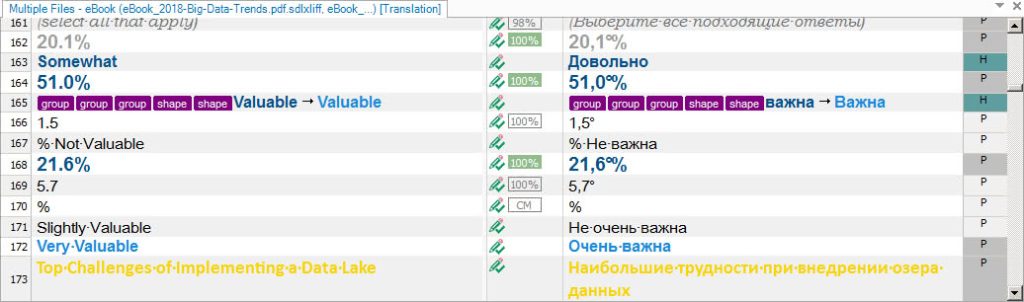
Look at the screenshot below:
How to Show or Hide Tags in Trados Studio - 2

It is an ordinary text in an ordinary Trados Studio document, isn’t it? You translated it and everything looks good.

But if you try to perform a QA (press F8), you suddenly receive multiple error messages about tag mismatches. You are puzzled, as there are only five tags, and they all correspond to the source and the target. How could that be? There are no mismatched tags!

The answer is intriguing: the document DOES contain tags. But they are hidden.

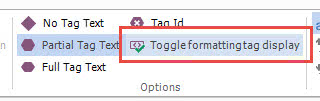
To see them, select the View tab on the Trados Studio ribbon and look at the Options section. There is a button for Toggle formatting tag display.
How to Show or Hide Tags in Trados Studio - 3

Press it:

How to Show or Hide Tags in Trados Studio - 4

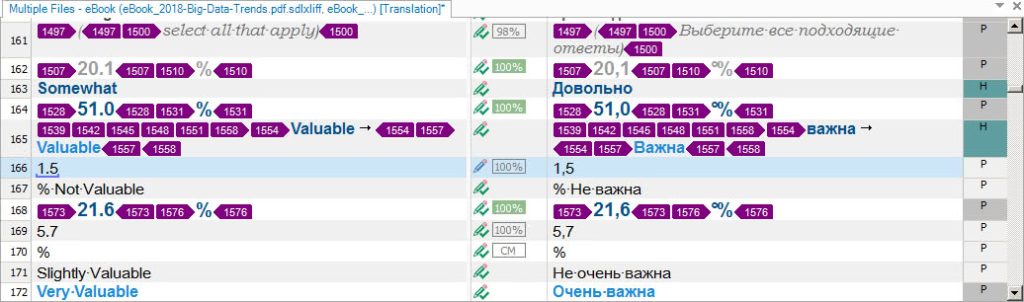
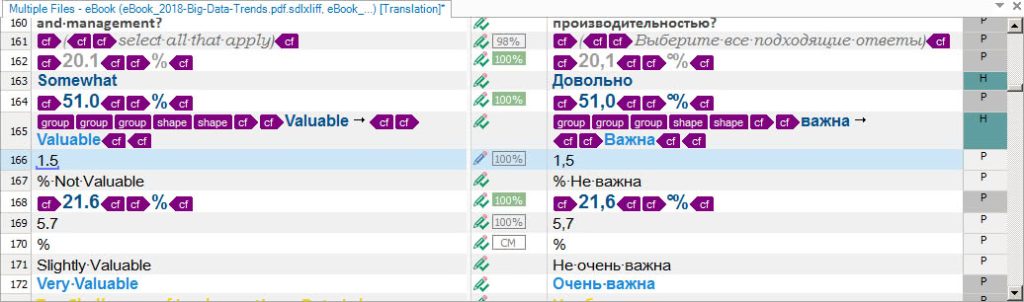
As you can see, the source text in this sample does contain multiple tags, but they are missing in your translation. You simply did not see them, because they were hidden due to the incorrect toggle position.

Now you see them and can restore them in translation:
How to Show or Hide Tags in Trados Studio - 5

All tag mismatches disappeared!

So, it makes sense to show tags always when you perform translation or review in Trados Studio. By the way, you can adjust the way of tag appearance by pressing the other buttons on the same sections. 

No-tag text (only symbols of a tag are shown; you can identify whether it is opening or closing as well):
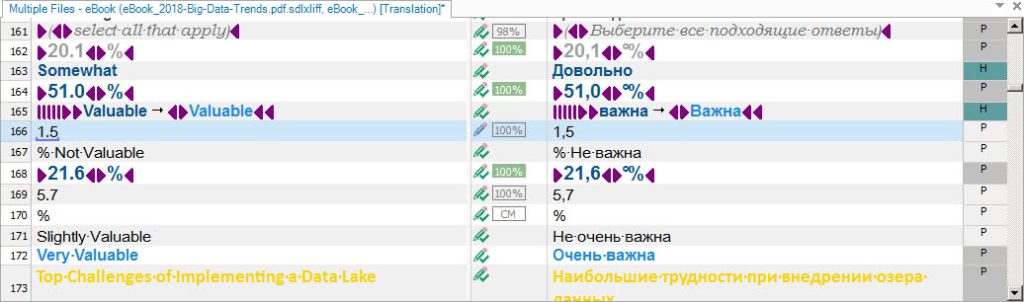
How to Show or Hide Tags in Trados Studio - 6

Partial tag text (you can identify the type of tag, but you do not see the entire tag text):
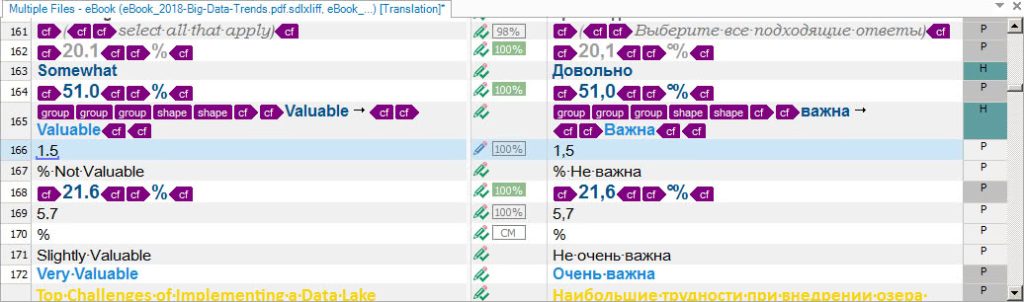
How to Show or Hide Tags in Trados Studio - 7

Full tag text (you see the entire tag text):
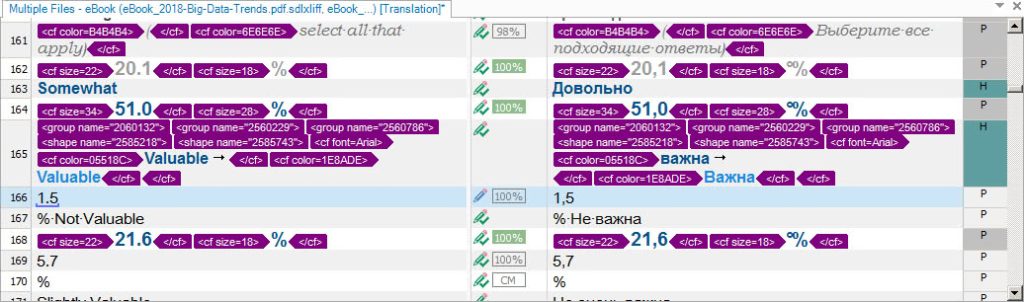
How to Show or Hide Tags in Trados Studio - 8

Tag Id (all tags are numbered):

How to Show or Hide Tags in Trados Studio - 9

* * *

We recommend you use the toggle on + Partial tag text combination.

Recommended content

How to Show or Hide Tags in Trados Studio - 10

A Few Abbreviations Every Technical Translator Should Know

Useful information for technical translators Here is are a few abbreviations you will encounter regularly if you work in technical translation:   See more interesting posts in our Telegram channel.
How to Show or Hide Tags in Trados Studio - 11

How to Select Text from the Cursor to a Specific Character in Word

Useful tips about working in Word In addition to the well-known Alt + mouse-click text selection trick, Word offers another lesser-known feature: Selection Extension mode. If you need to select text from the cursor to a specific character—especially if that character is difficult to locate or is currently outside the visible screen area—press F8, then […]
How to Show or Hide Tags in Trados Studio - 12

How to Prevent Data Loss If Your CAT Tool Crashes

Useful tips about working with CATs If your CAT tool crashes and there is a risk of losing the completed portion of your translation, the first priority is to preserve the work you have already done. Only after securing the data should you attempt to fix the issue. Otherwise, you may have to redo the […]
How to Show or Hide Tags in Trados Studio - 13

Why Word May Refuse to Check Spelling

Useful tips about working in Word Why Word may refuse to check spelling: Go to File → Options → Proofing, then select the Check spelling as you type checkbox and clear the Hide spelling errors in this document only checkbox (see image). Select the text you want to check, then verify that the correct language […]
How to Show or Hide Tags in Trados Studio - 14

How the Ctrl + G Key Combination Works in Different Programs

The Ctrl + G shortcut is one of the most underrated navigation tools across modern applications. Whether you work in a browser, Word, Excel, or a CAT tool, this key combination lets you jump to a specific location instantly—a line, page, cell, segment, or the next match. Because many users rely only on Ctrl + […]