our blog
How to Find Synonyms and Antonyms in Word
18 August 2016
Finding synonyms is easy
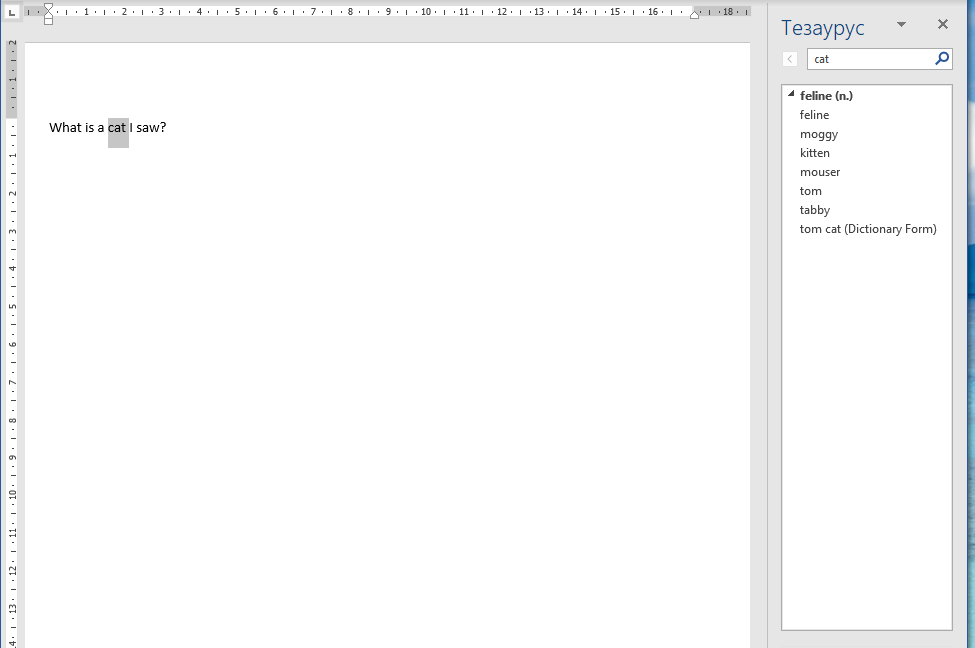
In Word, you can easily look for synonyms and antonyms of a selected word. To do this, select a word (or just place the text cursor on it) and press Shift + F7. On the right, the additional windows appear, where you can see the synonyms and/or antonyms:
Recommended content

How to use the ampersand and how is it different from and
A little bit on how & is different from and The ampersand is a ligature that the Latin conjunction et, which means and, has been transformed into. Once upon a time, the ampersand was even considered the 27th letter of the alphabet. When pronouncing letters in the alphabet, it was ended with the words and […]

How to split a large Trados Studio file into multiple parts
About splitting a large file into multiple parts How to split a large Trados Studio file into several parts: ➕ The plugin is free, simple, and effective. Trados Studio is not needed at all. ➖ It is better to use it only for splits, there are problems with merges. * * * ➕ Always works […]

T9N, L10N, I18N, G11N, C13N, M17N, V8N
Some slang abbreviations from the localization field Let’s check some slang abbreviations from the localization field. All of them are based on the principle of “taking the first and last letters of a word, cutting out the middle, and writing the number of the cut out letters instead.” These terms are vague, and their meanings […]

How to enter characters that are not on the keyboard
About ways to enter characters that are not on the keyboard If you’re working on Windows and need to type something that isn’t on the keyboard, press Win + ;. A small window will appear where you can choose the type of character you want (regular, emoji, or smiley) at the top and specify it […]

How to fix the “Value cannot be null. Parameter name culture” error in Trados Studio
About another error in Trados Studio If you create a project in Trados Studio and when asking to see a preview of the file, it says that you are not cultured enough, Value cannot be null. Parameter name: culture —ignore it: the project will be created properly and everything will be fine. It’s only the […]

