our blog

Hidden Characters in Different CAT Tools

Hidden Characters in Different CAT Tools - 1

In this post, we will show how to enable hidden characters in the mainstream CAT tools

A month ago, we mentioned hidden characters in Word. Since it is useful to see them when working on texts, it makes sense to know how to toggle them in the mainstream CAT tools. 

Trados Studio

When in Editor mode, select Home tab on the ribbon and press this button:

Hidden Characters in Different CAT Tools - 2

There is no special shortcut for enabling/disabling hidden characters, but you can set it yourself in the Trados Studio settings. 

memoQ

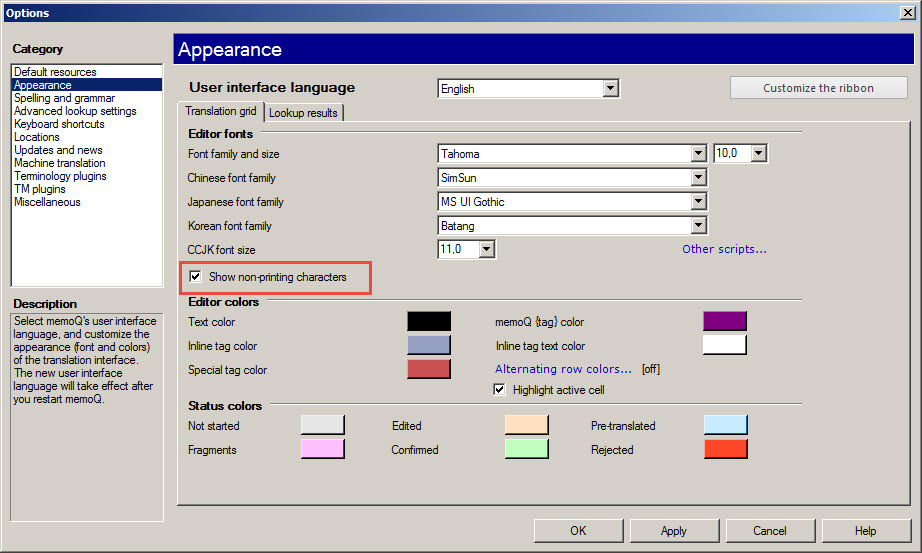
In memoQ, showing hidden characters is somewhat trickier:

Select memoQ (on the ribbon) > Options > OptionsOptions dialog box appears. On the left pane, select Appearance. Then, select Show non-printing characters on the right:
Hidden Characters in Different CAT Tools - 3

Xliff Editor

In Xliff Editor, there is a toggle similar to the one in Word and Trados Studio:

Hidden Characters in Different CAT Tools - 4

TagEditor

The same in TagEditor (from Trados 2007 bundle):

Hidden Characters in Different CAT Tools - 5

Transit NXT

In Transit NXT, select the View tab on the ribbon, then set the checkbox Special characters:

Hidden Characters in Different CAT Tools - 6

Wordfast Pro

The toggle enabling hidden characters in Wordfast is similar to the one in TagEditorWord, and Xliff Editor:

Hidden Characters in Different CAT Tools - 7

Memsource

The same button is used in the Memsource Editor:

Hidden Characters in Different CAT Tools - 8

Recommended content

Hidden Characters in Different CAT Tools - 9

How to fix the «Failed to load project from …» error in Trados Studio

About another error in Trados Studio Let’s analyze the Trados Studio error: Failed to load project from … There is an error in XML document (X, Y). Unexpected end of file has occurred. Unexpected end of file while parsing Name has occurred. The error is caused by a violation of the structure of the SDLPROJ […]
Hidden Characters in Different CAT Tools - 10

A Few Abbreviations Every Technical Translator Should Know

Useful information for technical translators Here is are a few abbreviations you will encounter regularly if you work in technical translation:  
Hidden Characters in Different CAT Tools - 11

How to Prevent Data Loss If Your CAT Tool Crashes

Useful tips about working with CATs If your CAT tool crashes and there is a risk of losing the completed portion of your translation, the first priority is to preserve the work you have already done. Only after securing the data should you attempt to fix the issue. Otherwise, you may have to redo the […]
Hidden Characters in Different CAT Tools - 12

Why Word May Refuse to Check Spelling

Useful tips about working in Word Why Word may refuse to check spelling: Go to File → Options → Proofing, then select the Check spelling as you type checkbox and clear the Hide spelling errors in this document only checkbox (see image). Select the text you want to check, then verify that the correct language […]
Hidden Characters in Different CAT Tools - 13

How to replace “straight quotes” with «guillemets» in Word

Useful tips about working in Word We already know how to quickly replace straight quotes with guillemets in Trados Studio and memoQ. Sometimes this has to be done not in the CAT tool but directly in the “monotext,” the text in the target language in Word. The easiest way to do this is to use […]