How the Ctrl + G Key Combination Works in Different Programs
The Ctrl + G shortcut is one of the most underrated navigation tools across modern applications. Whether you work in a browser, Word, Excel, or a CAT tool, this key combination lets you jump to a specific location instantly—a line, page, cell, segment, or the next match. Because many users rely only on Ctrl + F, the capabilities of Ctrl + G often go unnoticed.
In this guide, we explore what the Ctrl + G shortcut does in various programs and how you can customize it to speed up your daily work.
Ways to use Ctrl + G
In most programs, Ctrl + G literally means “go to”—jump directly to a specific location in a document. Depending on the application, it may help you:
- move to a page number, cell, or line,
- navigate to the following search result,
- switch to a particular segment in translation software,
- quickly find objects or edits in complex files.
The Ctrl+G shortcut is handy for editors, translators, developers, analysts, and anyone who works with long documents.
Ctrl + G in commonly used applications
Microsoft Word: go to page, section, or heading
The Ctrl + G Word command opens the Find and Replace window with the Go To tab active:
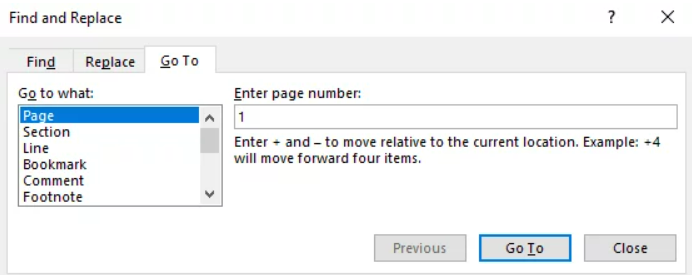
You can jump to:
- a page number,
- a section or line,
- a table or graphic,
- footnotes or comments.
How to use Ctrl + G in Word:
- Press Ctrl + G.
- Choose an element type from the left sidebar (Page, Section, Comment, etc.).
- Enter the target number or range.
- Click Go To—Word instantly moves the cursor.
Tip: You can return to the previous position using Shift + F5.
Microsoft Excel: go to cell
The Excel Ctrl + G shortcut is used for fast cell or range navigation.
Steps:
- Press Ctrl + G or F5.
- Type a cell reference, e.g., T5000:
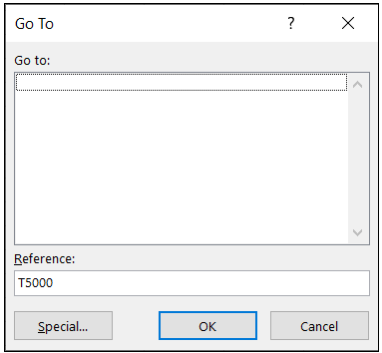
- Press Enter—the cursor jumps straight to that cell.
Additional features:
- Use the Special… button to select blanks, formulas, objects, constants, or cells with data validation:
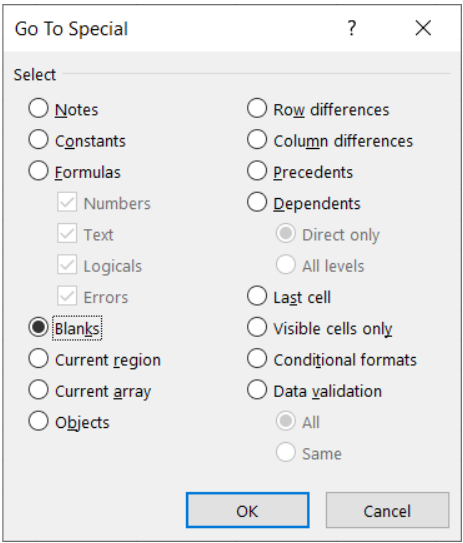
- Great for cleaning large spreadsheets.
In addition to using Ctrl + G for quick navigation, you can further boost your efficiency with other useful keyboard shortcuts in Excel.
Microsoft PowerPoint: jump to slide number
PowerPoint includes a simple Go To Slide command.
How to use:
- Press Ctrl + G (in Normal or Slide Show mode).
- Enter the slide number.
- Click Go To.
It is helpful for large presentations with 50–200+ slides.
Google Docs: navigate through search results
Google Docs doesn’t have a dedicated Go To dialog like Word, but Ctrl + G works as a navigation tool.
- Ctrl + F starts a search.
- Ctrl + G jumps to the next match.
- Ctrl + Shift + G goes to the previous match.
Using this shortcut speeds up search navigation in long documents.
Chrome, Firefox, Opera: Ctrl + G in browsers
In browsers, Ctrl + G extends the standard Ctrl + F search.
The Ctrl + G Chrome shortcut works the same way as the Ctrl + G Firefox combination, as well as the one for Opera:
- Press Ctrl + F to open the Find bar.
- Press Ctrl + G to jump to the following search result.
- Press Ctrl + Shift + G to go back to the previous match.
Because Ctrl + G duplicates and extends the functionality of Ctrl + F, you can skip Ctrl + F entirely: just press Ctrl + G to continue through matches on any webpage.
Adobe Photoshop: go to layer or frame
Photoshop assigns Ctrl + G to Group Layers, but the Go To command is also available for frames and timeline navigation.
To avoid conflicts, many users reassign Ctrl + G to navigation actions manually (explained later).
Common uses after reassignment:
- go to a specific frame in animation,
- jump to the guide or slice number.
Notepad++: go to line
Notepad++ is one of the most convenient environments for working with code or text files.
How Ctrl + G works in Notepad++:
- Press Ctrl + G.
- Enter the line number you want to jump to.
- Click Go or press Enter on the keyboard:
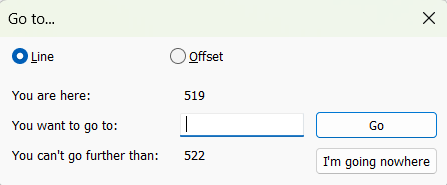
This feature is essential for debugging, log analysis, or code reviews.
In standard Windows Notepad, this shortcut does not work.
Ctrl + G in translation software (CAT tools)
Trados Studio: go to segment
In Trados Studio, Ctrl + G helps jump directly to a segment number:
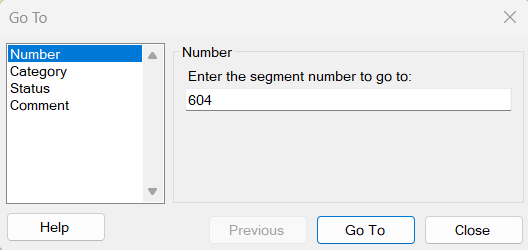
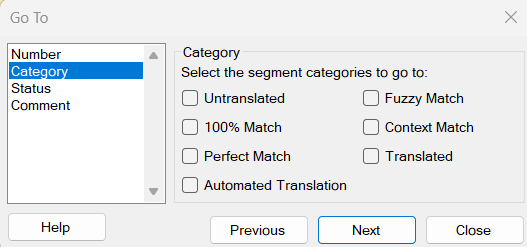
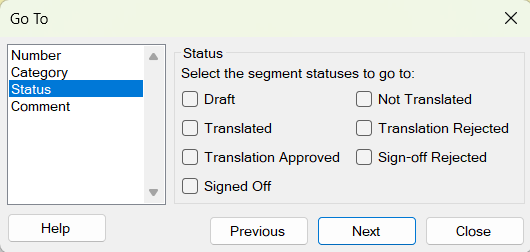
The dialog allows additional filters:
- by segment category,
- by confirmation status,
- by comments (if any),
- search direction (forward or backward).
Using this shortcut is highly efficient in large bilingual projects.
memoQ: navigate by segment type
memoQ uses a more advanced variation of this shortcut:
- Ctrl + G is used to jump to a segment according to your Go to Next Settings.
- Ctrl + Shift + G opens the settings window where you can choose what the “next segment” means (e.g., next untranslated, next confirmed, next with a comment, etc.).
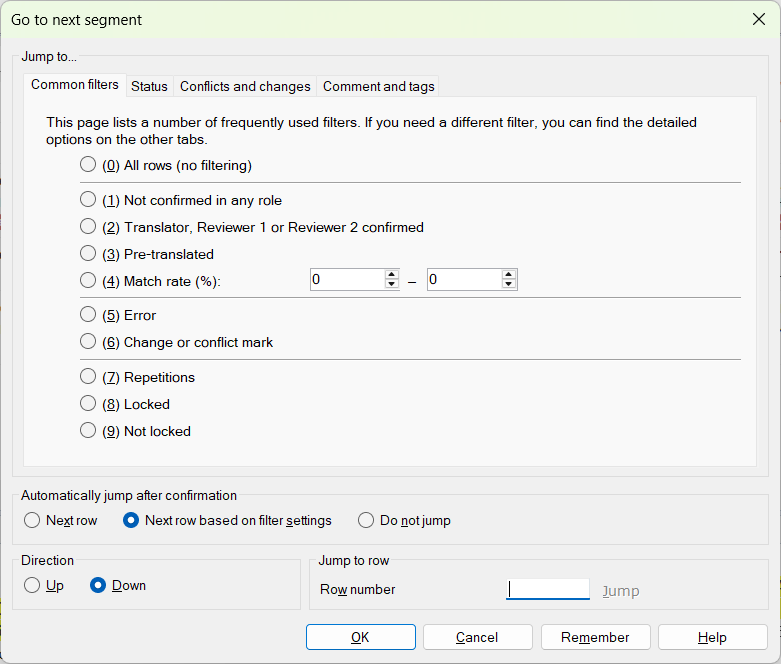
This implementation of Ctrl + G is among the most flexible in CAT tools.
Wordfast: go to segment by number
Wordfast keeps it simple: Ctrl + G means “Go to a specified segment number.” Ideal for quick QA or correction tasks.
Comparison table: what Ctrl + G does in different programs
| Application | Action | Notes |
| Word | Go to page/section/comment | Includes search and replace tabs |
| Excel | Go to a cell or range | Supports Special selection |
| PowerPoint | Go to slide number | Works during presentations |
| Google Docs | Next search match | Similar to browser navigation |
| Chrome / Firefox / Opera | Next/previous search result | Ctrl + Shift + G goes back |
| Notepad++ | Go to line | Useful for coding |
| Trados Studio | Go to segment | With filters |
| memoQ | Jump based on “Goto Next Settings” | Highly customizable |
| Wordfast | Go to segment | Fast and simple |
Note: Beyond navigating your documents with Ctrl + G, another layer of productivity comes from launching entire programs via keyboard hotkeys.
How to change or reconfigure the Ctrl + G shortcut
Many applications allow you to reassign keyboard shortcuts if Ctrl + G conflicts with your workflow.
Windows
- Install Microsoft PowerToys.
- Open Keyboard Manager, and in the Remap shortcuts pane, click Remap a shortcut button:
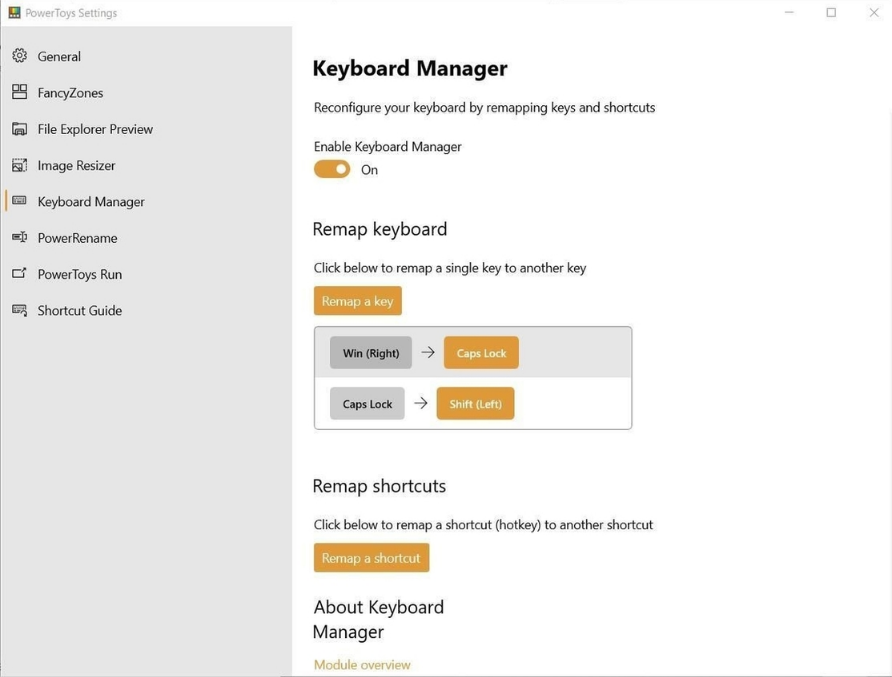
- Add a new mapping:
- Original: Ctrl + G
- New action: your preferred command (e.g., Ctrl + F7).
Photoshop
- Go to Edit → Keyboard Shortcuts.
- Choose Application Menus or Panel Menus.
- Assign a new function to Ctrl + G or move grouping to another key.
memoQ
- Press Ctrl + Shift + G.
- Configure rules for “next segment.”
- Save your Goto profile.
Trados Studio
- Navigate to File → Options → Keyboard Shortcuts.
- Customize navigation shortcuts globally or per project.
Final thoughts
The Ctrl + G shortcut is one of the most powerful time-saving tools across software platforms. Whether you use Word, Excel, Chrome, Notepad++, or a CAT tool like Trados Studio or memoQ, this key combination helps you navigate large documents effortlessly.
If you understand how Ctrl + G behaves in different applications and how to adjust it when needed, you can significantly speed up text editing, translation, coding, and document review.
Recommended content

How to Get Rid of Annoying Pop-Ups in Word

How to Configure the Enter Key Behavior in Passolo

Keyboard Shortcuts to Launch Programs in Windows

How to Insert a Tab Character in a Word Table