Keyboard Shortcuts to Launch Programs in Windows

Many Windows users don’t realize that simple Windows hotkeys can open the apps they need faster than clicking through menus. If you regularly work with office programs such as Word, Excel, or Outlook, mastering Windows keyboard commands can save you tens of minutes every day.
Basic keyboard shortcuts to launch programs
Windows 10 and Windows 11 already include built-in keyboard hotkeys for launching popular Microsoft 365 apps. These combinations work automatically—no need to set them up manually. Just press the right keys, and the program will open instantly.
Here are some useful shortcuts:
- Ctrl + Win + Alt + Shift + L — opens the LinkedIn page in your browser.
- Ctrl + Win + Alt + Shift + N — launches OneNote.
- Ctrl + Win + Alt + Shift + O — opens Outlook.
- Ctrl + Win + Alt + Shift + P — launches PowerPoint.
- Ctrl + Win + Alt + Shift + T — opens Microsoft Teams.
- Ctrl + Win + Alt + Shift + W — launches Word.
- Ctrl + Win + Alt + Shift + X — opens Excel.
- Ctrl + Win + Alt + Shift + Y — launches Yammer (or Viva Engage, if updated).
These shortcuts are great examples of how keyboard hotkeys and modifier keys (Ctrl, Alt, Win, Shift) can be combined to open apps instantly. Make sure the app is already installed—if the combination doesn’t work, the program might be missing or the hotkey unsupported.
You can also use standard Windows keyboard shortcuts like Win + R to open the Run dialog box or Win + E to open File Explorer, and so on.
Tip: If nothing happens when pressing a combination, update Windows or Microsoft 365—some hotkeys are added through system updates.
Creating custom hotkeys
If you want to open not only Microsoft apps but also your favorite browser, translator, or video editor, you can easily create keyboard shortcuts in Windows for any program.
How to create hotkeys in Windows
- Find the shortcut for the program you want to launch (on the desktop or in the Start menu).
- Right-click on the shortcut and select Properties.
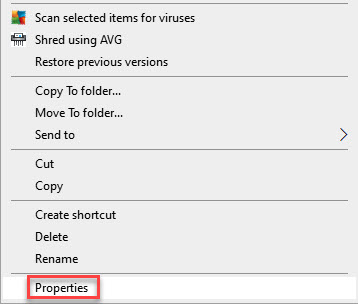
- Go to the Shortcut tab. In the Shortcut key field, press the combination you want to assign—for example, Ctrl + Alt + X for Xbench.
The screenshot below shows that no shortcut has yet been assigned to the Xbench program:
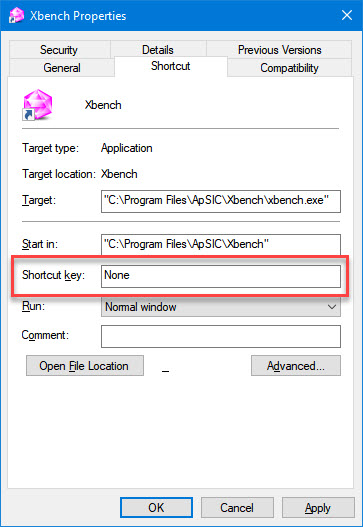
- Click OK to confirm.
Now, when you press this combination, the app will open instantly—no matter which window you’re working in.
This official method is safe and doesn’t require any third-party keyboard shortcut application. That’s how you can create your own Windows hotkeys for any program you use frequently.
If you need more advanced control—for example, launching several programs at once—try a hotkey application like AutoHotkey. It allows you to program keyboard shortcuts and automate complex actions, creating macros for professional-level customization.
Additional tips
- If your keyboard is opening programs on its own, check whether Ctrl, Alt, Win, or Shift keys are stuck. Sticky keys can trigger unwanted shortcuts.
- Many keyboards include an Apps key (application key on keyboard) that opens the context menu (similar to right-click). It’s often labeled as the apps key on keyboard, and may look like this:
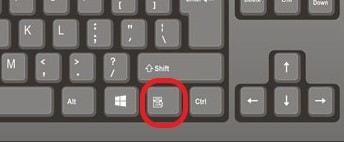
Or like this:
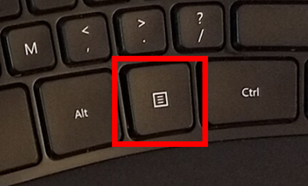
- To open the Control Panel keyboard shortcut, press Win + R, type “control” and hit Enter.
- If your shortcuts don’t work, check for software conflicts—some keyboard shortcut applications or group policies may block custom combinations.
- Turn off unnecessary background apps to save battery life when your laptop isn’t plugged in.
Advantages of using keyboard commands
When you start using Windows hotkeys regularly, your productivity will noticeably increase. You’ll get rid of hundreds of unnecessary clicks every week.
Hotkeys help you:
- Open programs and apps faster
- Switch between languages or windows conveniently
- Stay focused without reaching for the mouse
- Reduce strain on your wrists
- Improve overall concentration.
Users who rely on Windows keyboard commands often report a 20–30% boost in efficiency. Every shortcut replaces multiple clicks—saving both time and effort.
Keyboard shortcuts in Windows are not only convenient but also efficient. Start with the default combinations for Microsoft 365, and then create your own keyboard shortcuts for the programs you use most. You’ll feel the difference in just a few days.
Recommended content

How to Fix the “LNG Is Missing” Error in MultiTerm

How to Fix the “The Specified Project Name Is Invalid” Error in Trados Studio
Useful Keyboard Shortcuts for Browsers

How to Fix the “Error processing command line arguments” Issue in Trados Studio