How to Get Rid of the “One or More Errors Occurred” Error in Trados Studio
Let’s tackle this extremely laconic error message in Trados Studio
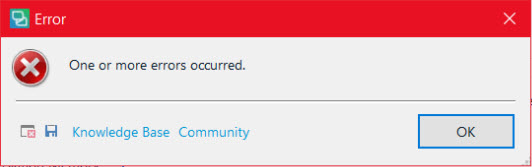
It is another Trados Studio error that provides too little information. This message appears during operations with a translation memory—particularly when conducting a concordance search for terms with the help of the F3 and Ctrl + F3 commands. In this case, Trados Studio does not close and even finds some terms.
As usual, the error message does not help identify the reason:
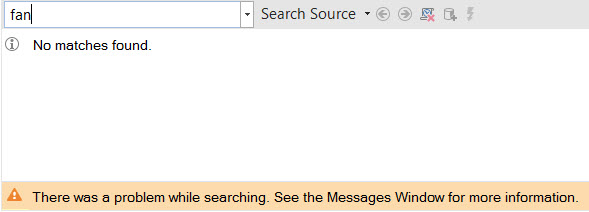
Next, during the attempts to conduct a concordance search for terms, the There was a problem while searching error appears. See the Messages Window for more information:
And in the Messages Window, the program informs that An error occurred while using the translation provider and The translation memory file is corrupt:

Everything suggests that this error takes place when two programs are simultaneously trying to access the SDLTM file that contains the Trados Studio translation memory.
In most cases, access conflicts occur when the SDLTM file is located not in the default folder but in a folder that is automatically synchronized with a cloud: Google Drive, Dropbox, etc.
The typical scenario is as follows: Dropbox (for example) is synchronizing the SDLTM file with the cloud storage, and at this moment you change (more precisely, try to change) the file by confirming a segment in Trados Studio with the Ctrl + Enter command. A short fight between Trados Studio and Dropbox happens, resulting in a failure, which we know as the “one or more errors.”
Users on various translation forums give two recommendations for this situation: to re-index the translation memory and turn off the upLIFT function (recognition of fragment matches). Both actions are undesirable: re-indexation can make your translation memory impossible to recover, and the upLIFT function will stop working if you turn it off (obviously). In any case, you should first save a backup copy of the SDLTM file.
Nevertheless, none of these recommendations turned out to be helpful for us. The following method did:
- Load the SDLTM file to Xbench.
- Export the surviving segments from Xbench to a TMX file. To do this, press Ctrl + R and uncheck the Untranslated items box in the next window specifying the TMX file name, source language, and the target language:
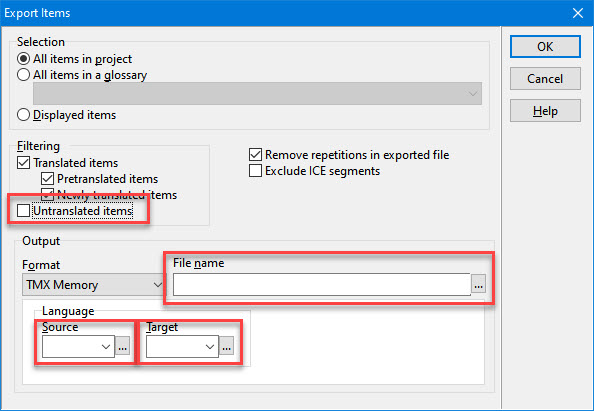
This way, Xbench is used not as a QA tool but as a converter.
- After that, go to Trados Studio, open the settings of the unfortunate project, go to the Translation memory and automated translation section, turn off the malfunctioning translation memory, create a new one with the same language pair, and import the TMX file created in Xbench in it. We performed this action with the following parameters (but you can choose others that will suit your situation better):
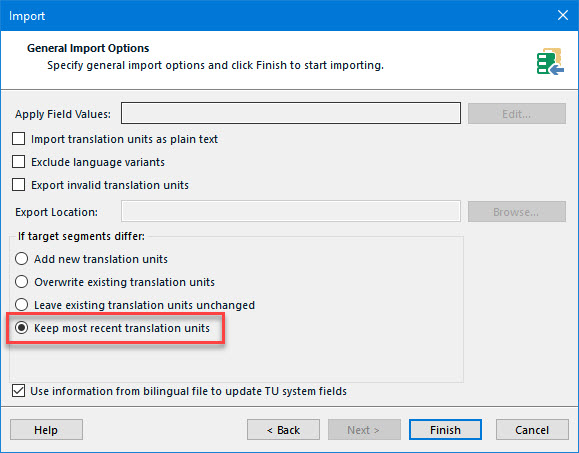
After these operations, the One or more errors occurred message does not appear anymore. To get rid of the error for good, you should restart Trados Studio.
Recommended content
How the Ctrl + G Key Combination Works in Different Programs
How to Get Rid of Annoying Pop-Ups in Word
How to Configure the Enter Key Behavior in Passolo

Keyboard Shortcuts to Launch Programs in Windows