our blog

How to Quickly Start or Close Programs
How to Quickly Start or Close Programs - 1

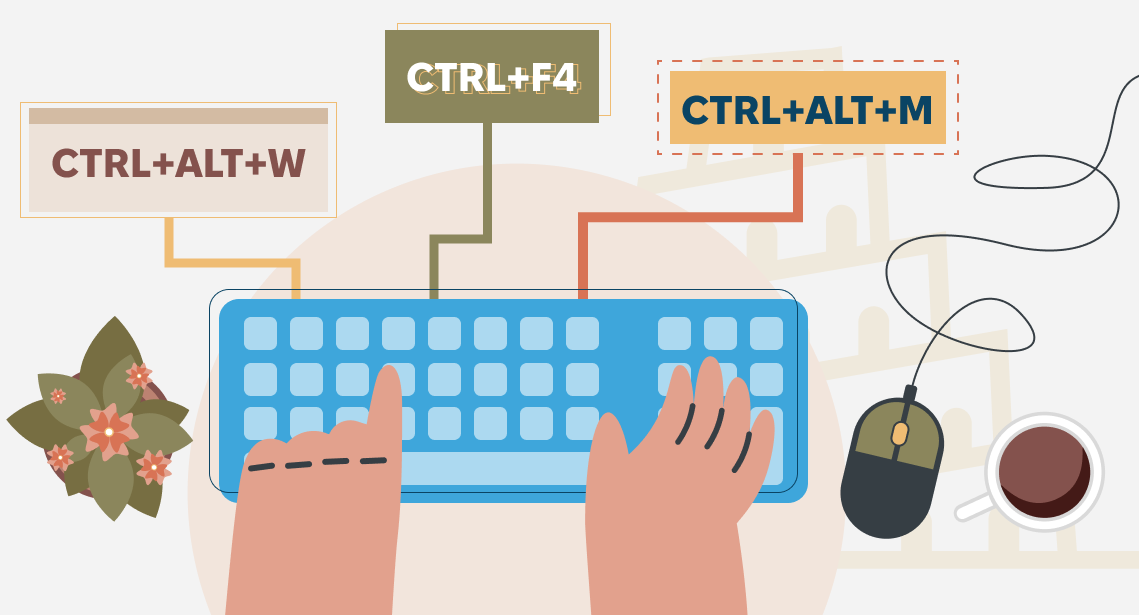
You can start or close a program with only one shortcut

99.9% of users start programs with a mouse.

The quickest way to start a program with a mouse is to double-click its icon on the desktop. This action seems to be as simple as possible, but it includes several even simpler actions:

  • Move your palm on the mouse
  • Move the cursor to the necessary icon on the desktop
  • Double-click it
  • Optionally, return your palm to the keyboard

Starting programs from the START Windows menu is even longer—additionally, you have to choose the program you need in the list. If you work in one or two programs, no need to worry. But if you constantly have to start and close different programs, you lose time. There is a way to speed up this process: shortcuts!

Each “serious” program has its shortcut on the desktop. (If not, you can add it manually by copying it from the START menu.)

Right-click the icon and select the last item in the menu that appears, Properties. There, go to the Shortcut tab. There is a field called the Shortcut key. Enter the shortcut in it, that will be assigned to the program. After clicking OK, this shortcut will run the correspondent program.

NOTE: Try choosing a shortcut that is easy to remember, for example, Ctrl + Alt + W for Word, Ctrl + Alt + M for memoQ etc.

And almost all programs can be closed with Ctrl + F4 shortcut.

Recommended content

How to Quickly Start or Close Programs - 2

How to Fix the “Failed to Save Target Content. Cannot Find File Type Definition” Error in Trados Studio

Another Trados Studio error The Failed to save target content error may occur when you try to create a “clean” file—that is, remove the source text from the translated file and leave only the translation using the Clean Up feature. This most commonly happens when a Trados Studio package was created on one computer, but […]
How to Quickly Start or Close Programs - 3

The Easiest Way to Identify the Language of a Text

Tips for identifying a text’s language The easiest way to identify the language of a text is to paste it into Google Translate and click Detect language. If Google Translate is unavailable, you can try identifying the language manually by looking for distinctive letters and symbols: You can find more information here.
How to Quickly Start or Close Programs - 4

How to Fix the “LNG Is Missing” Error in MultiTerm

Troubleshooting a MultiTerm error If the LNG is missing message repeatedly appears when you launch SDL MultiTerm or work with terms—even though the program continues to function normally—there is a 99% chance that Trados Studio and MultiTerm are set to different interface languages on your computer. Set both programs to the same language, and the […]
How to Quickly Start or Close Programs - 5

How to Fix the “The Specified Project Name Is Invalid” Error in Trados Studio
Troubleshooting another Trados Studio error When creating a project in Trados Studio, you may see the following message: The specified project name is invalid. The name should not contain any invalid characters such as: \ / : * ? ” < > | If this happens even though the project name does not appear to […]
How to Quickly Start or Close Programs - 6

Useful Keyboard Shortcuts for Browsers

Handy keyboard shortcuts One sign of a proficient computer user is that they regularly use keyboard shortcuts. If something can be done with either the keyboard or the mouse, they will usually choose the keyboard. Most people primarily use a mouse when browsing the web. However, many browser actions can be performed just as easily—and, […]