Useful Keyboard Shortcuts for Browsers
Handy keyboard shortcuts
One sign of a proficient computer user is that they regularly use keyboard shortcuts. If something can be done with either the keyboard or the mouse, they will usually choose the keyboard.
Most people primarily use a mouse when browsing the web. However, many browser actions can be performed just as easily—and, more importantly, much faster—with the keyboard. Here are a few useful browser shortcuts that have been tested in Chrome, Firefox, and Opera.
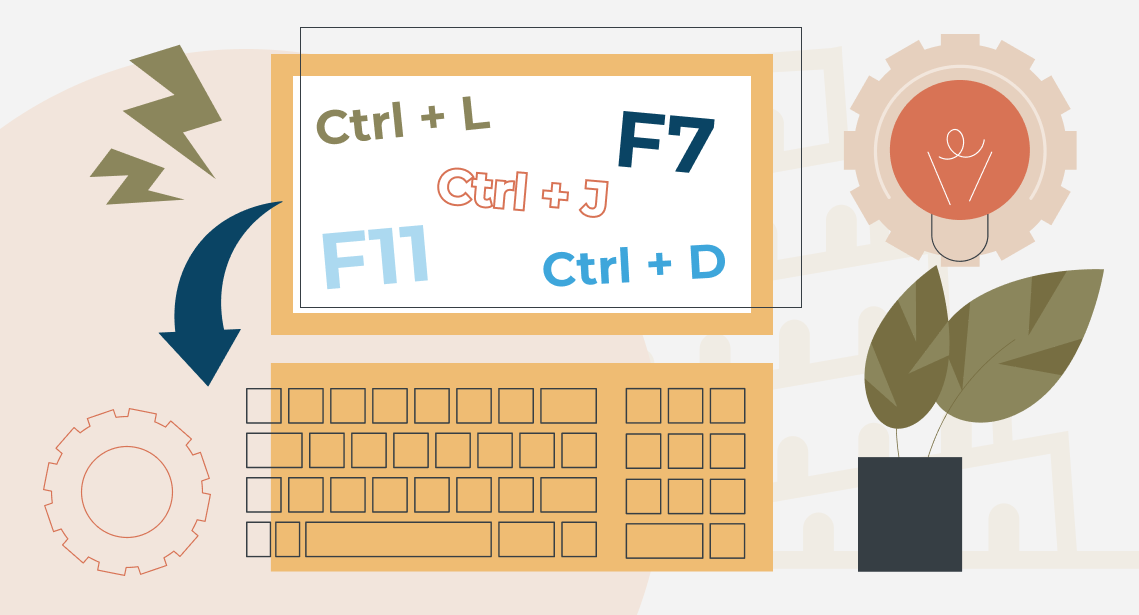
- Ctrl + L—jump to the address bar. This is useful when you need to quickly copy the link to the page you are currently viewing.
- F7—in most programs, this key activates spell-checking, but in browsers, it enables caret browsing mode. When this mode is turned on, a text cursor appears on the page. In a way, it is similar to pressing Scroll Lock. It is helpful when you need to select and copy text from a web page. This is not always easy—or even possible—to do with a mouse, especially when the text itself contains a hyperlink. This mode does not work in Opera.
- F11—switch to full-screen mode. This is useful when viewing maps, photos, and similar content. It works in all browsers—and, unexpectedly, in Trados Studio too!
- Ctrl + J—view your downloaded files and see where they are stored.
(Here is a little trick: after you download something in Chrome, a download bar appears at the bottom of the screen. It takes up valuable space and has to be closed manually. You can close it using the keyboard instead: press Ctrl + J, followed by Ctrl + W. Just try not to look at the screen while you do it 🙂)
- Ctrl + number—switch to the tab that corresponds to the number you press.
- Ctrl + D—bookmark the current page.
- Ctrl + H—view links you have previously opened. In Chrome, this is also a convenient way to access links from another device—for example, to open a link from your phone on your computer. You will find the Tabs from other devices option in the upper-left corner. Both devices must be signed in to the same account.
Recommended content
How to Fix the “Error processing command line arguments” Issue in Trados Studio

How to use the ampersand and how is it different from and

How to split a large Trados Studio file into multiple parts

T9N, L10N, I18N, G11N, C13N, M17N, V8N