our blog

How to Select a Rectangular Fragment in Word

How to Select a Rectangular Fragment in Word - 1

You can select rectangular fragments in Word

Word offers a lot of commands for selecting text fragments. They are very well-chosen and easy to memorize:

Symbols:

  • Shift + →  — one symbol to the right
  • Shift + ←  — one symbol to the left

Words:

  • Ctrl + Shift + →  — one word to the right
  • Ctrl + Shift + ←  — one word to the left

Lines:

  • Shift + End  — from the cursor to the end of the line
  • Shift + Home  — from the cursor to the beginning of the line
  • Shift +  ↑ — one line upward
  • Shift + ↓  — one line downward

Paragraphs:

  • Ctrl + Shift +  ↑ — one paragraph upward
  • Ctrl + Shift + ↓  — one paragraph downward

Pages:

  • Ctrl + Shift + End  — from the cursor to the end of the page
  • Ctrl + Shift + Home  — from the cursor to the beginning of the page

As we see, the distinctive feature all these commands share is the usage of the Shift key.

Apart from these selection methods, Word offers another astonishing opportunity known to a few: one can select random rectangular text fragments.

Where can this feature come in handy?

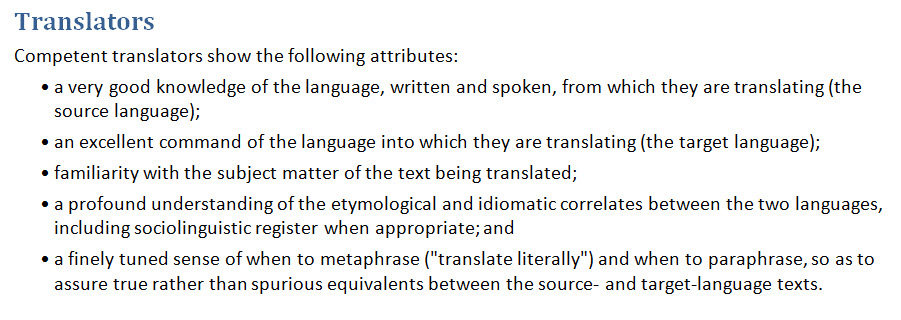
Let’s say you have a text fragment like this:
How to Select a Rectangular Fragment in Word - 2

And you need to delete the bullets—those circles in the list lines. How to do it quickly?

You can delete them one by one. You can use AutoCorrect—replace “a circle with a space” with “nothing.” You can also take advantage of the circles being placed aside from the text, select them all at once, and delete them all at once.

In other words, there are only two actions to do:

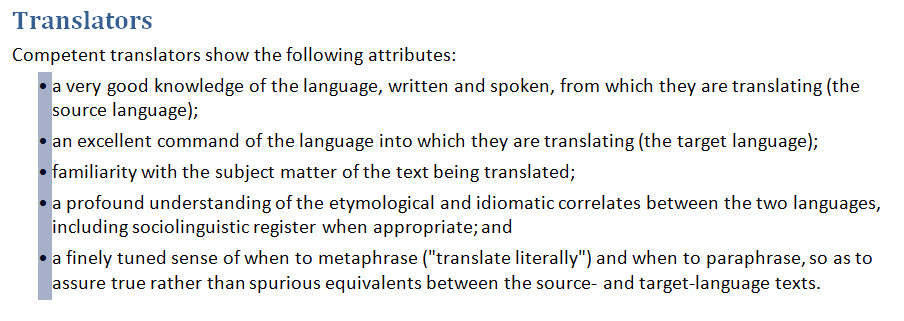
1. Press and hold the Alt key (not Shift!), select an area in the file capturing all the circles and leaving the text intact:
How to Select a Rectangular Fragment in Word - 3

2. Press the Delete key:

How to Select a Rectangular Fragment in Word - 4

And that’s it—all the circles are gone.

The only thing is that it’s impossible to do this rectangular selection without a mouse.

Recommended content

How to Select a Rectangular Fragment in Word - 5

How to Fix the “LNG Is Missing” Error in MultiTerm

Troubleshooting a MultiTerm error If the LNG is missing message repeatedly appears when you launch SDL MultiTerm or work with terms—even though the program continues to function normally—there is a 99% chance that Trados Studio and MultiTerm are set to different interface languages on your computer. Set both programs to the same language, and the […]
How to Select a Rectangular Fragment in Word - 6

How to Fix the “The Specified Project Name Is Invalid” Error in Trados Studio
Troubleshooting another Trados Studio error When creating a project in Trados Studio, you may see the following message: The specified project name is invalid. The name should not contain any invalid characters such as: \ / : * ? ” < > | If this happens even though the project name does not appear to […]
How to Select a Rectangular Fragment in Word - 7

Useful Keyboard Shortcuts for Browsers

Handy keyboard shortcuts One sign of a proficient computer user is that they regularly use keyboard shortcuts. If something can be done with either the keyboard or the mouse, they will usually choose the keyboard. Most people primarily use a mouse when browsing the web. However, many browser actions can be performed just as easily—and, […]
How to Select a Rectangular Fragment in Word - 8

How to Fix the “Error processing command line arguments” Issue in Trados Studio

About another Trados Studio issue Another Trados Studio quick fix: If you see this error dialog, it’s resolved the same way as the Access to the path … is denied error.
How to Select a Rectangular Fragment in Word - 9

How to use the ampersand and how is it different from and

A little bit on how & is different from and The ampersand is a ligature that the Latin conjunction et, which means and, has been transformed into. Once upon a time, the ampersand was even considered the 27th letter of the alphabet. When pronouncing letters in the alphabet, it was ended with the words and […]