How to Arrange Trados Studio to Fit Small Screens

Arrange Trados Studio on your laptop screen to make it convenient to work with
When you work with texts, it’s desirable to have two monitors. According to studies, the second monitor allows for productivity gains averaging 25-30%.
It’s nice translating or editing on the computer with two displays: throwing a CAT tool on one monitor and dictionaries with the reference on the other and having a blast. But what should you do if there is no second monitor and the only one you have is too small? Quite a common situation for a translator, particularly a freelancer.
The classic size for a laptop screen is 15 inches. If the screen is smaller, it’s extremely inconvenient to work with; if the screen is larger, the laptop turns out to be too heavy and “ravenous”: its battery dies after a few hours of work.
Let’s consider the working process in Trados Studio and find out what can be sacrificed for the sake of the enlargement of the work pane and how to hide unnecessary elements of the user interface that take up too much space.
The “unprepared” Trados Studio on the 15-inch display looks something like this:
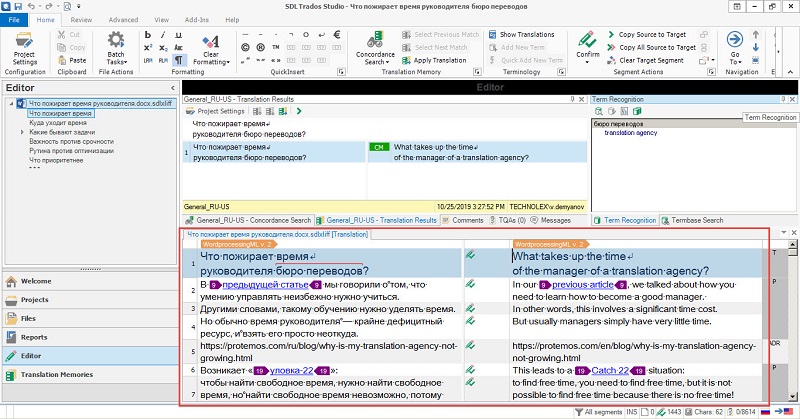
As you can see, the work pane here takes up only about one-third of the screen. It is enough for seven segments only. It’s too small for full-fledged activity; too much space is occupied by other elements.
Let’s free some space for the work pane. First, hide the ribbon by pressing Ctrl + F1:
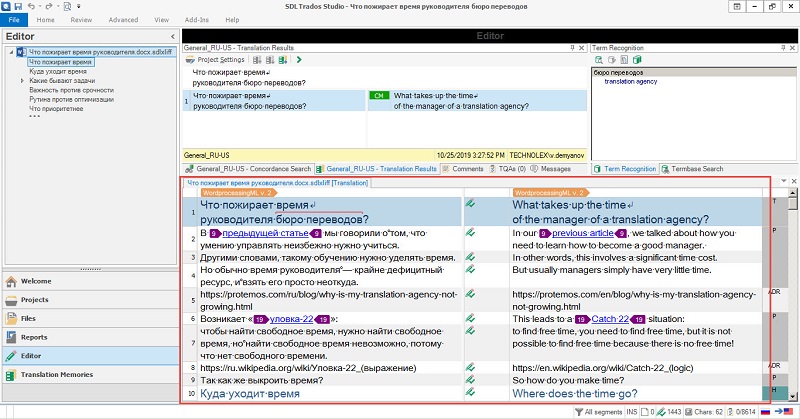
The ribbon is minimized, and there is more space: the work pane holds 10 segments now. When needed, you can show the ribbon with the help of the same key combination—Ctrl + F1.
Now it’s time to minimize the project navigation pane on the left. To do this, click the minimize arrow in the top right corner of the pane:
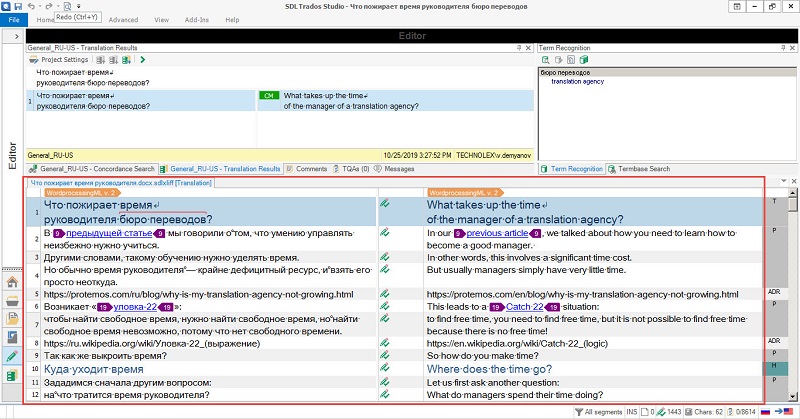
The navigation pane is now narrowed but still functional. Its text has been turned into icons. Thus, the work pane occupies the bigger part of the screen, and the number of visible segments has increased to 12. Two simple commands allowed us to make it almost two times larger.
There is also a more radical way of enlarging the work pane (no, we’re not going to sacrifice the font size). Press F11:
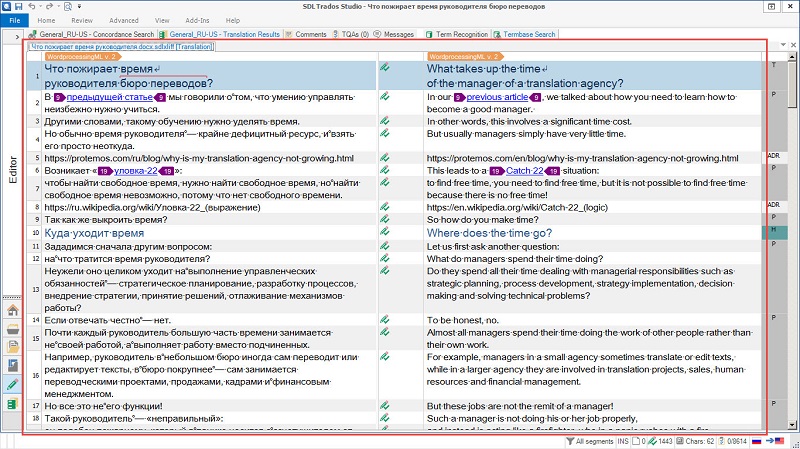
Trados Studio goes into a special mode when only the work pane is displayed. The rest, including the translation memory, termbase, concordance windows, the ribbon, and even the Windows taskbar, are hidden.
Since this mode displays only the text and hides all additional elements, it is handy for editing, and final self-proofreading before submitting the file when nothing should distract from the text.
To exit the mode, press the same F11 key.
Recommended content

How to use the ampersand and how is it different from and

How to split a large Trados Studio file into multiple parts

T9N, L10N, I18N, G11N, C13N, M17N, V8N
How to enter characters that are not on the keyboard