How to Remove the “Dependency File Not Found” Error in Trados Studio

Usually, this error doesn’t prevent you from translating. Nevertheless, you can get rid of it
First, let’s figure out what causes it.
When you create a package for translation in Trados Studio, each file you add to it gets converted into the SDLXLIFF format, and the translation is performed in this new file.
The name of the SDLXLIFF file is generated in the simplest way possible: by adding the SDLXLIFF extension to the name of the original file. Thus, a file with the name, for instance, Text_to_translate_asap.docx is transformed into the file Text_to_translate_asap.docx.sdlxliff.
By the way, it means that with the file’s name, you can reconstruct the name and type of the source file used for its creation very easily. A Trados Studio file with the name Translate_right_now!.xlsx.sdlxliff is created from the Excel file Translate_right_now!.xlsx.
Once the translation is completed, you face a reverse task: you need to recreate the original file, replacing the source text there with the translated one. This operation is called “Clean” and stands for cleaning the source text off the file. To perform this operation, Trados Studio has to store the source file somewhere.
If the source file is small, it is stored right inside the SDLXLIFF file. If it is big, Trados Studio remembers its location to return to it when needed later.
What file’s size is considered small and what is recognized as big is determined by the parameter in Trados Studio that is hidden here:
Files > Options > File Types > SDLXLIFF > General:
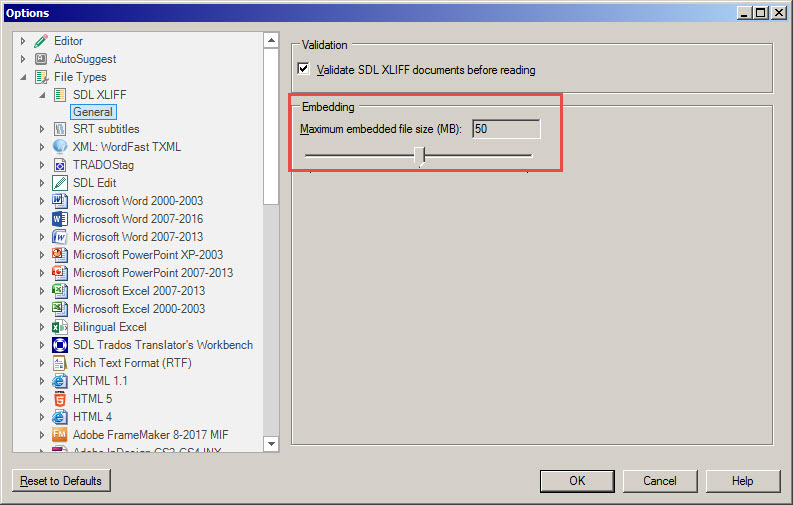
It equals 20 MB by default. Looking ahead, we need to say that it’s worth increasing this value.
If the work on the project is performed at the same computer where it has been created, no problems usually occur as Trados Studio knows where all original files are stored. But if the files have been moved or if the package is being sent to another computer, Trados Studio will have no access to them.
If Trados Studio shows the “Dependency file not found” message, it means that it needs the original files, but it has “lost” them. That’s why it will wonder, “Would you like to browse for this file?”—i.e., ask for specifying the path to them.
Great if you have the original files. Then you say “Yes” to the question and just specify the path to them. The error disappears, Trados Studio calms down and proceeds with operation as usual.
If you don’t have the original files or if you decided not to specify the path to them, answer “No” as there is no other option. You’ll be able to keep working on the text, but some operations with files won’t be available (in particular, Save Target As, Preview, Generate Target Translations, etc.). In most cases, you won’t need them anyway.
Generally, this error doesn’t prevent you from continuing to translate: you’ll be able to finish the translation, create the return package, and send the translation to the client. Since the package was created on their computer, such a problem is not going to puzzle them.
But there are situations when Trados Studio refuses to work because of this error. In this case, the most important is to save the translation memory you’ve been using. It keeps all the segments you’ve translated if you have been confirming them while translating. You’ll be able to use them in the fixed Trados Studio package.
Recommended content
How to Fix the “Error processing command line arguments” Issue in Trados Studio

How to use the ampersand and how is it different from and
How to split a large Trados Studio file into multiple parts

T9N, L10N, I18N, G11N, C13N, M17N, V8N