our blog

How to Translate TXLF Wordfast Files in Trados Studio

How to Translate TXLF Wordfast Files in Trados Studio - 1

Trados Studio can be used to translate .txlf Wordfast files

If you do not have or do not like or do not work in Wordfast, you can translate its files in Trados Studio.

Trados Studio knows well how to process different file types (WordExcel, HTML and many, many others). To teach your Trados Studio to work with TXLF Wordfast files means to explain it what those files actually are.

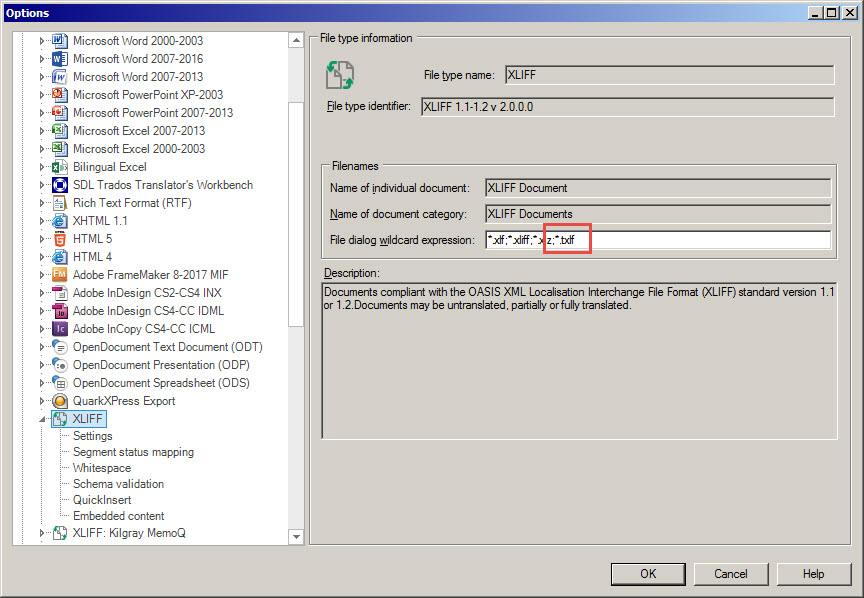
A TXLF file is actually a standard XLIFF file with changed extension. So it is enough to add a file mask to the other existing XLIFF files in Trados Studio settings.

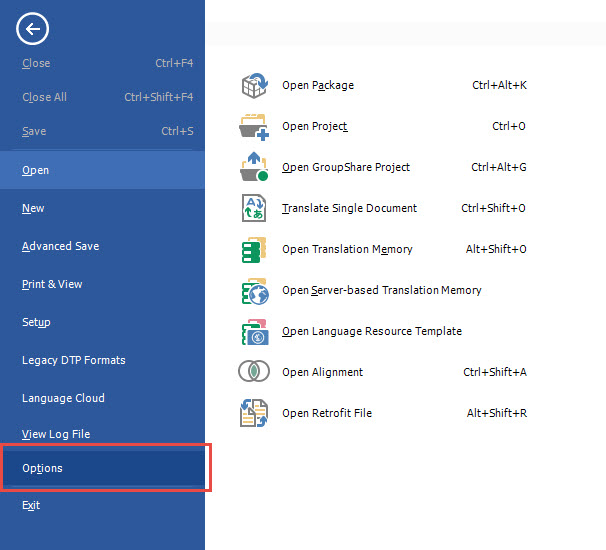
To do this, select File > Options:
How to Translate TXLF Wordfast Files in Trados Studio - 2

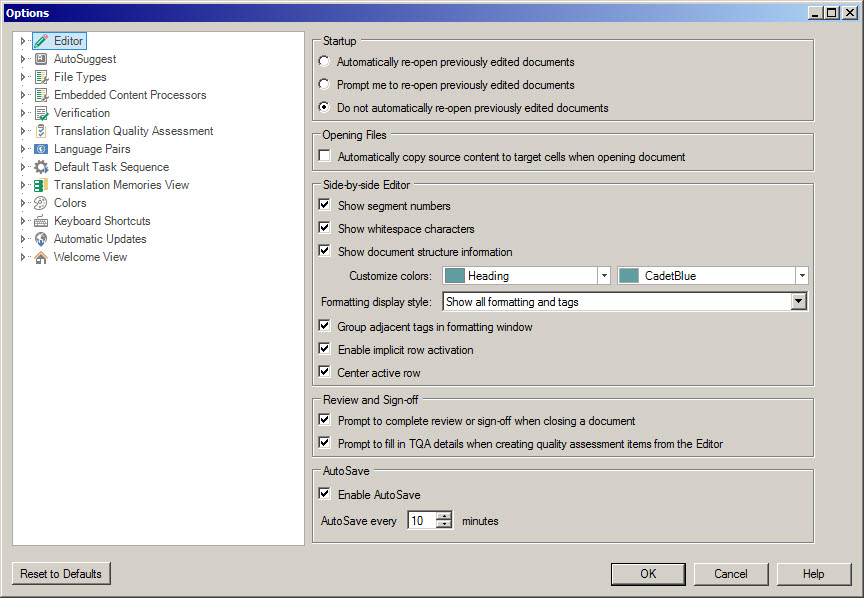
Options dialog window opens:

How to Translate TXLF Wordfast Files in Trados Studio - 3

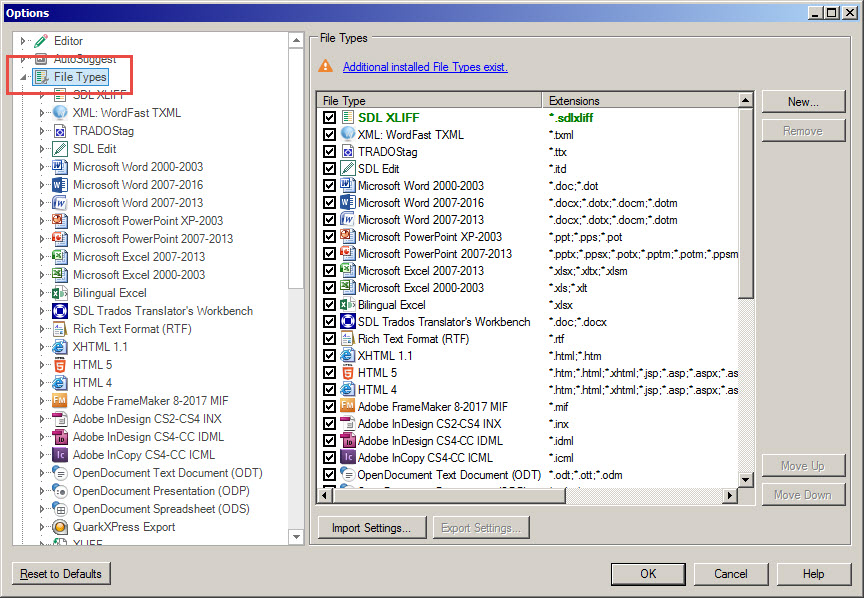
Select File Types:

How to Translate TXLF Wordfast Files in Trados Studio - 4

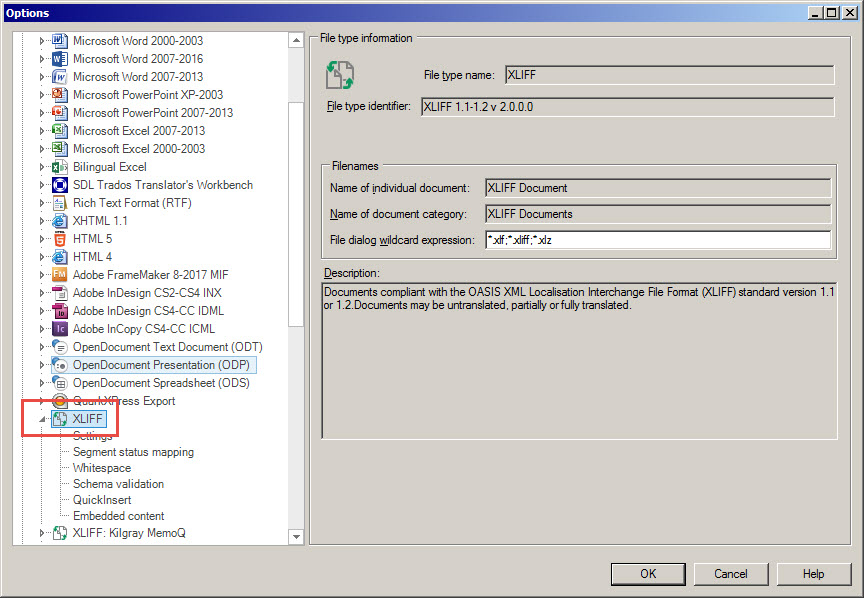
Scroll to the XLIFF item and click it:
How to Translate TXLF Wordfast Files in Trados Studio - 5

On the right pane, all possible XLIFF files extensions are listed. What you need to do is to add a mask for TXLF—;*.txlf:
How to Translate TXLF Wordfast Files in Trados Studio - 6

Then, click OK. That's it: now your Trados Studio is able to work with TXLF Wordfast files.

To receive the translated TXLF files after translation, just perform a regular clean procedure.

Recommended content

How to Translate TXLF Wordfast Files in Trados Studio - 7

How to Prevent Data Loss If Your CAT Tool Crashes

Useful tips about working with CATs If your CAT tool crashes and there is a risk of losing the completed portion of your translation, the first priority is to preserve the work you have already done. Only after securing the data should you attempt to fix the issue. Otherwise, you may have to redo the […]
How to Translate TXLF Wordfast Files in Trados Studio - 8

Why Word May Refuse to Check Spelling

Useful tips about working in Word Why Word may refuse to check spelling: Go to File → Options → Proofing, then select the Check spelling as you type checkbox and clear the Hide spelling errors in this document only checkbox (see image). Select the text you want to check, then verify that the correct language […]
How to Translate TXLF Wordfast Files in Trados Studio - 9

How the Ctrl + G Key Combination Works in Different Programs

The Ctrl + G shortcut is one of the most underrated navigation tools across modern applications. Whether you work in a browser, Word, Excel, or a CAT tool, this key combination lets you jump to a specific location instantly—a line, page, cell, segment, or the next match. Because many users rely only on Ctrl + […]
How to Translate TXLF Wordfast Files in Trados Studio - 10

How to Get Rid of Annoying Pop-Ups in Word

Microsoft Word is one of the most popular tools for writing, editing, and formatting documents. However, many users eventually face the same frustration: constant Word pop-ups that interrupt workflow when opening or closing files. These notifications may include error messages, template warnings, or add-in alerts. The good news is that in most cases, you can […]
How to Translate TXLF Wordfast Files in Trados Studio - 11

How to Configure the Enter Key Behavior in Passolo

Passolo software (also known as SDL Passolo) is one of the most user-friendly tools for software localization. However, even experienced Passolo translators may not realize that the Enter key behavior in this program can be customized. Adjusting this setting helps you prevent unwanted automatic confirmation of segments, maintain flexibility during translation, and improve your overall […]