our blog
How to replace “straight quotes” with «guillemets» in Word
07 April 2026
Useful tips about working in Word
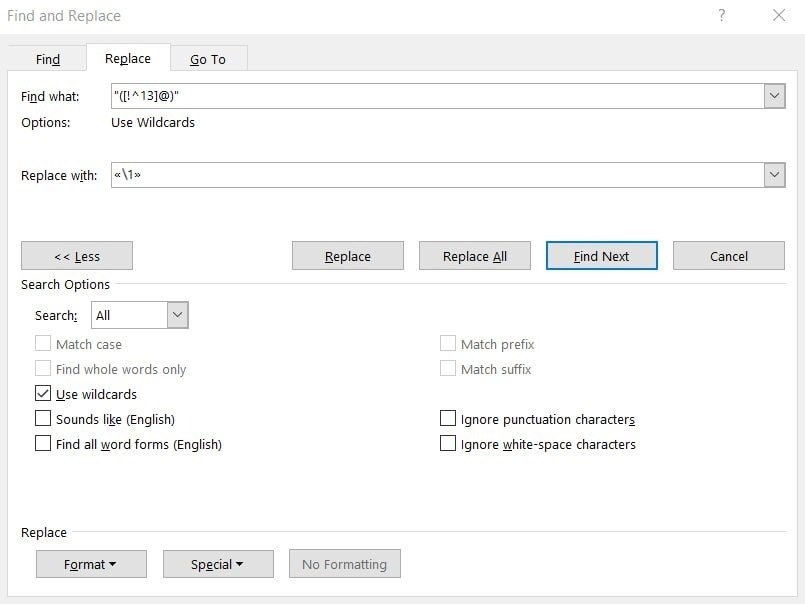
We already know how to quickly replace straight quotes with guillemets in Trados Studio and memoQ. Sometimes this has to be done not in the CAT tool but directly in the “monotext,” the text in the target language in Word.
The easiest way to do this is to use regular expressions: they are indispensable in such situations.
- In Word, press Ctrl + H. The Find and Replace dialog box appears.
- Click More >>. Additional options appear in the dialog box.
- In this dialog box, select the Use wildcards check box to turn on regular expression mode. After that, enter the query "([!^13]@)" in the Find what: field and the code «\1» in the Replace with: field.
Just like with Trados Studio and memoQ, you shouldn’t do this replacement blindly. In general, it’s best to go through all the cases one by one, clicking the Replace button and checking that the replacement is performed correctly. Usually, there are not so many quotation marks in the text.
Recommended content

How to Fix the “Failed to Save Target Content. Cannot Find File Type Definition” Error in Trados Studio
Another Trados Studio error The Failed to save target content error may occur when you try to create a “clean” file—that is, remove the source text from the translated file and leave only the translation using the Clean Up feature. This most commonly happens when a Trados Studio package was created on one computer, but […]

The Easiest Way to Identify the Language of a Text
Tips for identifying a text’s language The easiest way to identify the language of a text is to paste it into Google Translate and click Detect language. If Google Translate is unavailable, you can try identifying the language manually by looking for distinctive letters and symbols: You can find more information here.

How to Fix the “LNG Is Missing” Error in MultiTerm
Troubleshooting a MultiTerm error If the LNG is missing message repeatedly appears when you launch SDL MultiTerm or work with terms—even though the program continues to function normally—there is a 99% chance that Trados Studio and MultiTerm are set to different interface languages on your computer. Set both programs to the same language, and the […]

How to Fix the “The Specified Project Name Is Invalid” Error in Trados Studio
Troubleshooting another Trados Studio error When creating a project in Trados Studio, you may see the following message: The specified project name is invalid. The name should not contain any invalid characters such as: \ / : * ? ” < > | If this happens even though the project name does not appear to […]
Useful Keyboard Shortcuts for Browsers
Handy keyboard shortcuts One sign of a proficient computer user is that they regularly use keyboard shortcuts. If something can be done with either the keyboard or the mouse, they will usually choose the keyboard. Most people primarily use a mouse when browsing the web. However, many browser actions can be performed just as easily—and, […]

