our blog

How to Select a Rectangular Fragment in Word

How to Select a Rectangular Fragment in Word - 1

You can select rectangular fragments in Word

Word offers a lot of commands for selecting text fragments. They are very well-chosen and easy to memorize:

Symbols:

  • Shift + →  — one symbol to the right
  • Shift + ←  — one symbol to the left

Words:

  • Ctrl + Shift + →  — one word to the right
  • Ctrl + Shift + ←  — one word to the left

Lines:

  • Shift + End  — from the cursor to the end of the line
  • Shift + Home  — from the cursor to the beginning of the line
  • Shift +  ↑ — one line upward
  • Shift + ↓  — one line downward

Paragraphs:

  • Ctrl + Shift +  ↑ — one paragraph upward
  • Ctrl + Shift + ↓  — one paragraph downward

Pages:

  • Ctrl + Shift + End  — from the cursor to the end of the page
  • Ctrl + Shift + Home  — from the cursor to the beginning of the page

As we see, the distinctive feature all these commands share is the usage of the Shift key.

Apart from these selection methods, Word offers another astonishing opportunity known to a few: one can select random rectangular text fragments.

Where can this feature come in handy?

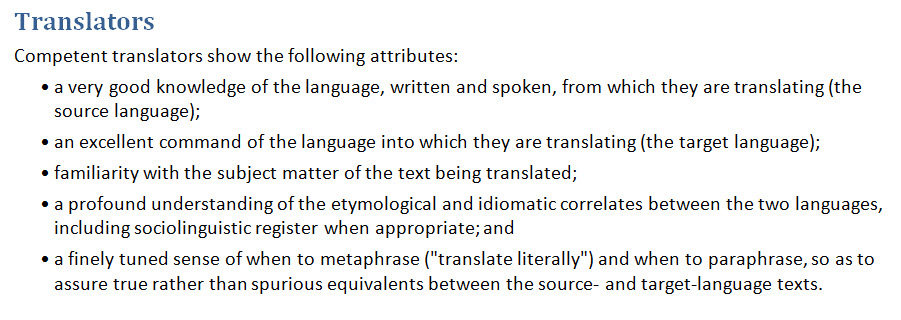
Let’s say you have a text fragment like this:
How to Select a Rectangular Fragment in Word - 2

And you need to delete the bullets—those circles in the list lines. How to do it quickly?

You can delete them one by one. You can use AutoCorrect—replace “a circle with a space” with “nothing.” You can also take advantage of the circles being placed aside from the text, select them all at once, and delete them all at once.

In other words, there are only two actions to do:

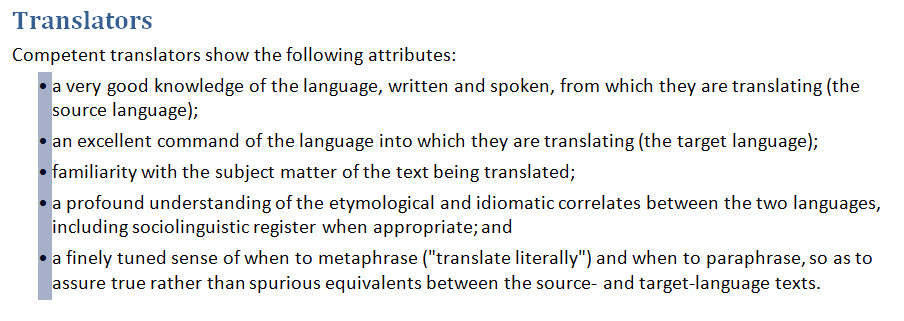
1. Press and hold the Alt key (not Shift!), select an area in the file capturing all the circles and leaving the text intact:
How to Select a Rectangular Fragment in Word - 3

2. Press the Delete key:

How to Select a Rectangular Fragment in Word - 4

And that’s it—all the circles are gone.

The only thing is that it’s impossible to do this rectangular selection without a mouse.

Recommended content

How to Select a Rectangular Fragment in Word - 5

How to fix «Failed to save target content: Cannot find central directory» error in Trados Studio

About the ways to fix the issue in Trados Studio When trying to generate a translated document in Trados Studio, this error sometimes occurs: Failed to save target content: Cannot find central directory. It happens because of corrupted data in the source file used to create and store the SDLXLIFF file you translated in Trados […]
How to Select a Rectangular Fragment in Word - 6

How to fix «Failed to open return package» error in Trados Studio

About another issue in Trados Studio When importing a package, Trados Studio might say that it Failed to open return package, because it contains a project that does not exist in your setup. That it’s not a Trados Studio issue, but yours: you tried to import a return package for a project Trados Studio doesn’t […]
How to Select a Rectangular Fragment in Word - 7

Lorem ipsum

About the dummy or placeholder text Lorem ipsum is a meaningless Latin text, so-called dummy or placeholder text, which is used to estimate how a layout will look with text presented in a particular font. This is usually done by designers, but it is also needed for pseudo-localization. This text became widely popular due to […]
How to Select a Rectangular Fragment in Word - 8

You sell not only the translation, but also your expertise

Some thoughts and reflections Modern technical translators have to be inquisitive. They don’t even have to; they must. The tools they use today will become unrecognizable in a few years. New programs and methods emerge, existing knowledge becomes outdated, and translators who are not interested in anything beyond the text are being outpaced by more […]
How to Select a Rectangular Fragment in Word - 9

Two stories about ChatGPT

Interesting facts about AI In early April 2024, artificial intelligence expert Jeremy Nguyen shared a thing he noticed: for some reason, the unremarkable word delve was used unexpectedly often in the texts generated by ChatGPT. So much often that Paul Graham, co-founder of Y Combinator and noted IT evangelist, considers the presence of this word […]