How to Enable and Configure Spelling Check in Chrome or Firefox

Your browser can check spelling in the way Word does
We have already set the spelling check in Word, memoQ, Wordfast, Trados Studio, and Passolo. All of these programs are standalone software for PCs. But many CAT tools are so-called SaaS—"Software as a Service". They are not software, but rather services providing online access to servers. There are many of them; the most popular are MateCat, smartCAT, MemSource, SmartLing, CrowdIn, Google Translator Toolkit (aka GTT), and their popularity is growing.
Such SaaS-based CAT tools are used in your regular browser. So, a browser turns to a CAT. There are pros and cons, but we face one problem: how to check spelling right in a browser. And we'd like to do this the same way we do this in Word.
Of course, most online CAT tools allow you to export the text in some file, that you can check with your “offline” spelling tools and then implement corrections in your online document. But this workaround is inconvenient.
There is a much easier way: if you use Chromе or Firefox, install the LanguageTool add-on. LanguageTool is a free, open-source tool that fights spelling mistakes.
LanguageTool browser add-on underlines all unknown (to it) words with red, just as Word does, in all fields where you can enter text. For example, here is how the text I am typing looks like:
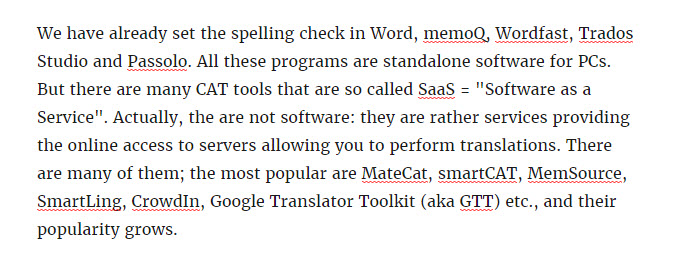
As you can see, LanguageTool is not familiar with CAT tools: all their names are underlined :)
Multi-language users have an advantage: LanguageTool allows spelling checks in several languages simultaneously.
Here is the official LanguageTool website where you can download the standalone LanguageTool program and its add-ons for different platforms: https://languagetool.org/
LanguageTool page in Chrome Web Store: https://chrome.google.com/webstore/detail/languagetool-grammar-and/oldceeleldhonbafppcapldpdifcinji
LanguageTool Firefox add-on: https://addons.mozilla.org/ru/firefox/addon/languagetool
Recommended content

How to Fix the “LNG Is Missing” Error in MultiTerm

How to Fix the “The Specified Project Name Is Invalid” Error in Trados Studio

Useful Keyboard Shortcuts for Browsers

How to Fix the “Error processing command line arguments” Issue in Trados Studio