our blog

How to Fix the “Corrupt File: Missing Locked Content for …” Error in Trados Studio

How to Fix the “Corrupt File: Missing Locked Content for …” Error in Trados Studio - 1

Another Trados Studio error

How to Fix the “Corrupt File: Missing Locked Content for …” Error in Trados Studio - 2

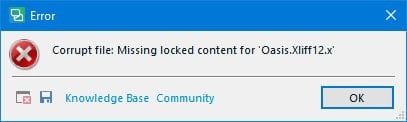
Let’s take a look at an error message that may appear when you try to open a document in Trados Studio:

Corrupt file: Missing locked content for "..."

Trados Studio itself is most likely not to blame. The error usually occurs because the file was processed in another CAT tool that did not handle it correctly.

In our case, the project manager assigned the job to a translator in Trados Studio. Without telling the manager, the translator imported the project into Smartcat and completed the translation there. Smartcat generated the translated file, but Trados Studio failed to recognize it when it was imported back.

The easiest solution is to ask the person who provided the corrupted file to generate a valid file in Trados Studio.

If that is not possible, import as much of the translation as you can into a temporary translation memory. Then go through the documents manually, inserting translations from the matching segments in the translation memory by pressing Ctrl + T and checking each segment as you go.

Recommended content

How to Fix the “Corrupt File: Missing Locked Content for …” Error in Trados Studio - 3

How Machine Translation Works

A metaphor for the machine translation process Imagine this: you are sitting in a room. It is sparsely furnished, with nothing but a desk, a chair, and an enormous bookcase. The shelves are packed with books, but every book has exactly the same cover, making them impossible to tell apart. You are good at your […]
How to Fix the “Corrupt File: Missing Locked Content for …” Error in Trados Studio - 4

How to Fix the “Failed to Save Target Content. Cannot Find File Type Definition” Error in Trados Studio

Another Trados Studio error The Failed to save target content error may occur when you try to create a “clean” file—that is, remove the source text from the translated file and leave only the translation using the Clean Up feature. This most commonly happens when a Trados Studio package was created on one computer, but […]
How to Fix the “Corrupt File: Missing Locked Content for …” Error in Trados Studio - 5

The Easiest Way to Identify the Language of a Text

Tips for identifying a text’s language The easiest way to identify the language of a text is to paste it into Google Translate and click Detect language. If Google Translate is unavailable, you can try identifying the language manually by looking for distinctive letters and symbols: You can find more information here.
How to Fix the “Corrupt File: Missing Locked Content for …” Error in Trados Studio - 6

How to Fix the “LNG Is Missing” Error in MultiTerm

Troubleshooting a MultiTerm error If the LNG is missing message repeatedly appears when you launch SDL MultiTerm or work with terms—even though the program continues to function normally—there is a 99% chance that Trados Studio and MultiTerm are set to different interface languages on your computer. Set both programs to the same language, and the […]
How to Fix the “Corrupt File: Missing Locked Content for …” Error in Trados Studio - 7

How to Fix the “The Specified Project Name Is Invalid” Error in Trados Studio

Troubleshooting another Trados Studio error When creating a project in Trados Studio, you may see the following message: The specified project name is invalid. The name should not contain any invalid characters such as: \ / : * ? ” < > | If this happens even though the project name does not appear to […]