our blog
How to Turn Off Automatic Error Correction in Trados Studio
07 December 2018
Don’t let Trados Studio change your text without your permission!
Why you should turn off automatic error correction and how to do it in Word, we’ve already discussed in our previous post. Now we will show you how to set the same in Trados Studio.
Select File > Options > in the Options dialog box, on the left panel choose Editor > AutoCorrect > on the right panel specify the language of the TARGET text (here it is Ukrainian) > uncheck the items in the Change how Studio corrects text as you type menu:
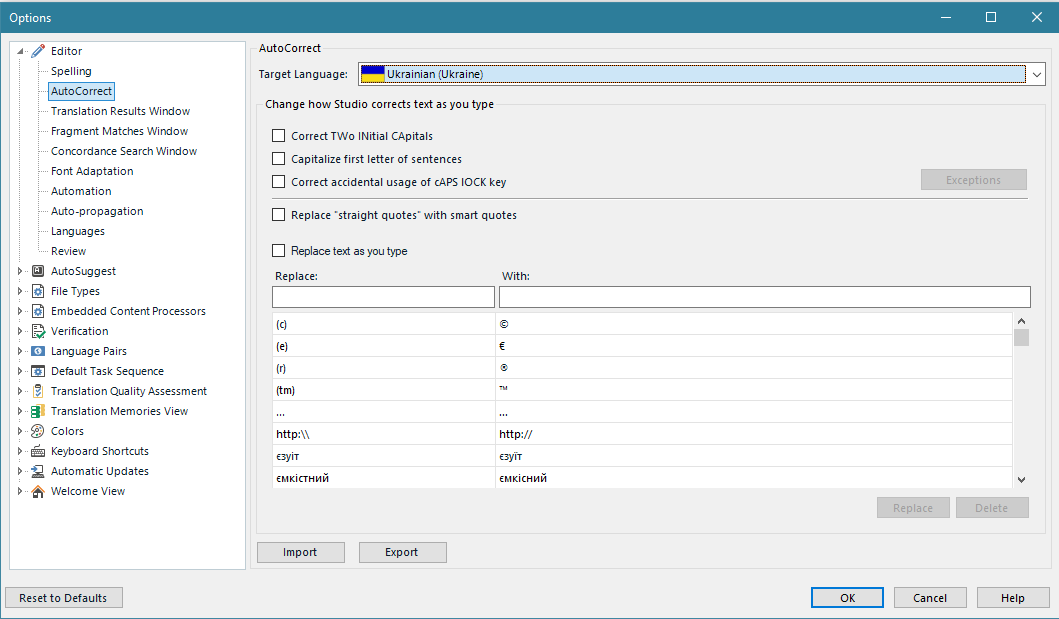
If you work with several languages, repeat this procedure for other languages too. And press OK.
After this, Trados Studio won’t be messing up with your translation.
Recommended content

How to Fix the “Error processing command line arguments” Issue in Trados Studio
About another Trados Studio issue Another Trados Studio quick fix: If you see this error dialog, it’s resolved the same way as the Access to the path … is denied error.

How to use the ampersand and how is it different from and
A little bit on how & is different from and The ampersand is a ligature that the Latin conjunction et, which means and, has been transformed into. Once upon a time, the ampersand was even considered the 27th letter of the alphabet. When pronouncing letters in the alphabet, it was ended with the words and […]

How to split a large Trados Studio file into multiple parts
About splitting a large file into multiple parts How to split a large Trados Studio file into several parts: ➕ The plugin is free, simple, and effective. Trados Studio is not needed at all. ➖ It is better to use it only for splits, there are problems with merges. * * * ➕ Always works […]

T9N, L10N, I18N, G11N, C13N, M17N, V8N
Some slang abbreviations from the localization field Let’s check some slang abbreviations from the localization field. All of them are based on the principle of “taking the first and last letters of a word, cutting out the middle, and writing the number of the cut out letters instead.” These terms are vague, and their meanings […]

How to enter characters that are not on the keyboard
About ways to enter characters that are not on the keyboard If you’re working on Windows and need to type something that isn’t on the keyboard, press Win + ;. A small window will appear where you can choose the type of character you want (regular, emoji, or smiley) at the top and specify it […]

