How to Turn Off Automatic Error Correction in Word

Don’t let programs change your text automatically
Modern CAT tools are doing their best to make translator’s work easier. For instance, they try to correct errors made by users. Some error types they consider extremely obvious and therefore correct automatically without asking users for permission to do so.
Driven by the desire to help, however, “cats” tend to do more harm than good by adding errors to the text automatically instead of correcting those made by users.
It is sad when the translator makes an error. But it is even worse if the translator makes no error, and the program inserts it.
Let’s look at how the autocorrect function works in Word.
Choose in Word: File > Options > on the left panel of the dialog box Proofing > on the right panel AutoCorrect Options... (the screenshot is taken from Word of Microsoft Office 2021). The following dialog box appears:
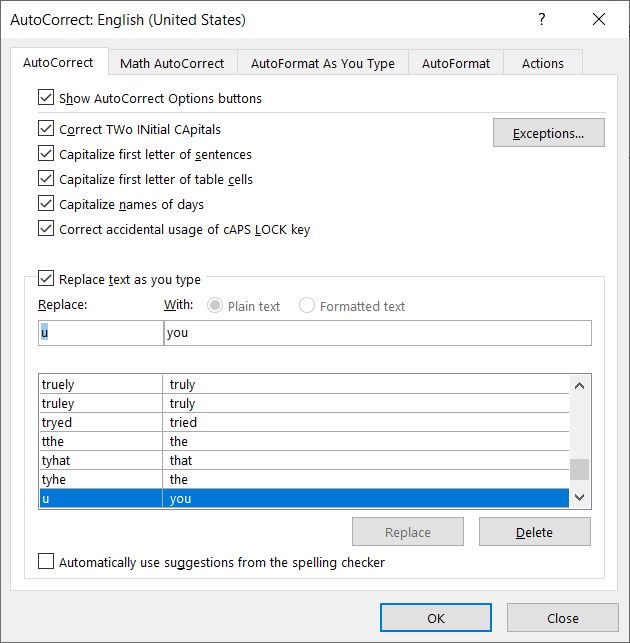
Let’s see what these check boxes do:
- Correct TWo INitial CApitals. Seems logical. But if it is on, your GHz (gigahertz) will turn into Ghz etc.
- Capitalize the first letter of sentences (or segments). Another good thing, but if the phrase is no separate sentence (for instance, being a list component) or one sentence is split into several segments in the “cat”, the letters which are to be lowercase will appear as uppercase.
- Capitalize the first letter of table cells. This is useful far too seldom; table elements often start with lowercase letters on purpose.
- Capitalize names of days. Indeed, in English names of days are always capitalized. Nevertheless, when you work with the Ukrainian language, this check box is useless.
- Correct accidental usage of cAPS LOCK key. There are lots of proper names which start with a lowercase letter on purpose.
- Correct keyboard layout. A dangerous function since it’s hard to notice when you’re typing a text in the wrong language. Moreover, it may work incorrectly in systems with three or more languages set.
Being familiar with this nasty side of the autocorrect feature, seasoned translators turn it off immediately after the installation of the program. We recommend you do the same. Don’t entrust programs with the power to change your texts automatically.
Recommended content
How to Fix the “LNG Is Missing” Error in MultiTerm

How to Fix the “The Specified Project Name Is Invalid” Error in Trados Studio
Useful Keyboard Shortcuts for Browsers

How to Fix the “Error processing command line arguments” Issue in Trados Studio