our blog

Why Word May Refuse to Check Spelling

Why Word May Refuse to Check Spelling - 1

Useful tips about working in Word

Why Word May Refuse to Check Spelling - 2

Why Word may refuse to check spelling:

  1. Spell checking is not enabled.

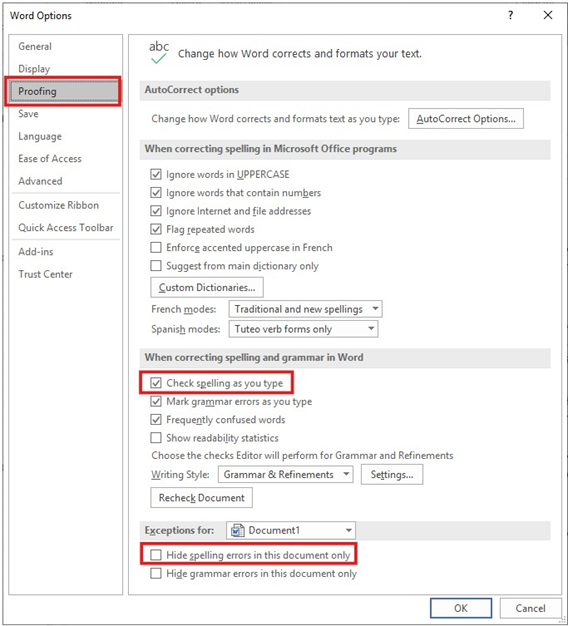
Go to FileOptionsProofing, then select the Check spelling as you type checkbox and clear the Hide spelling errors in this document only checkbox (see image).

  1. The text is marked with the wrong language.

Select the text you want to check, then verify that the correct language is shown in the status bar at the bottom of the window. If it is not, click the language name and choose the correct language from the list that appears.

By the way, Word can check spelling in multiple languages at the same time. To enable this, assign the appropriate language to each part of the text written in a different language.

  1. The number of errors in the text exceeds 2,000, so Word has automatically stopped checking spelling to conserve system resources.

Either assign the correct language to the text (see above), reduce the number of errors and enable spell checking again (also see above), or split a large document into several smaller files to review errors more easily.

Even if Word disables automatic spell checking due to a large number of errors, you can still run a manual check by pressing F7.

  1. Word does not support the language of the text you want to check.

Install support for the required language. This usually involves downloading and installing the appropriate language pack from Microsoft.

Recommended content
Why Word May Refuse to Check Spelling - 3

How the Ctrl + G Key Combination Works in Different Programs

The Ctrl + G shortcut is one of the most underrated navigation tools across modern applications. Whether you work in a browser, Word, Excel, or a CAT tool, this key combination lets you jump to a specific location instantly—a line, page, cell, segment, or the next match. Because many users rely only on Ctrl + […]
Why Word May Refuse to Check Spelling - 4

How to Get Rid of Annoying Pop-Ups in Word

Microsoft Word is one of the most popular tools for writing, editing, and formatting documents. However, many users eventually face the same frustration: constant Word pop-ups that interrupt workflow when opening or closing files. These notifications may include error messages, template warnings, or add-in alerts. The good news is that in most cases, you can […]
Why Word May Refuse to Check Spelling - 5

How to Configure the Enter Key Behavior in Passolo

Passolo software (also known as SDL Passolo) is one of the most user-friendly tools for software localization. However, even experienced Passolo translators may not realize that the Enter key behavior in this program can be customized. Adjusting this setting helps you prevent unwanted automatic confirmation of segments, maintain flexibility during translation, and improve your overall […]
Why Word May Refuse to Check Spelling - 6

Keyboard Shortcuts to Launch Programs in Windows

Many Windows users don’t realize that simple Windows hotkeys can open the apps they need faster than clicking through menus. If you regularly work with office programs such as Word, Excel, or Outlook, mastering Windows keyboard commands can save you tens of minutes every day. Basic keyboard shortcuts to launch programs Windows 10 and Windows […]
Why Word May Refuse to Check Spelling - 7

How to Insert a Tab Character in a Word Table

Most Microsoft Word users know that the Tab key creates an indent in the text. When you place the cursor in a regular paragraph and press Tab, the program inserts a tab character — a hidden formatting mark that helps align text precisely. This basic but powerful Word formatting tool allows you to create structured lists, […]