How to Remove the “An Error Occurred Whilst Trying to Determine the File Version” Error in Trados Studio
In most cases, projects that have disappeared from Trados Studio can be restored
Another post about Trados Studio errors. The symptoms of the disease are as follows: one fine day you start Trados Studio, and it displays the “An error occurred whilst trying to determine the file version” message:
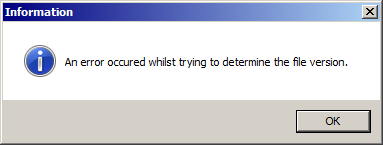
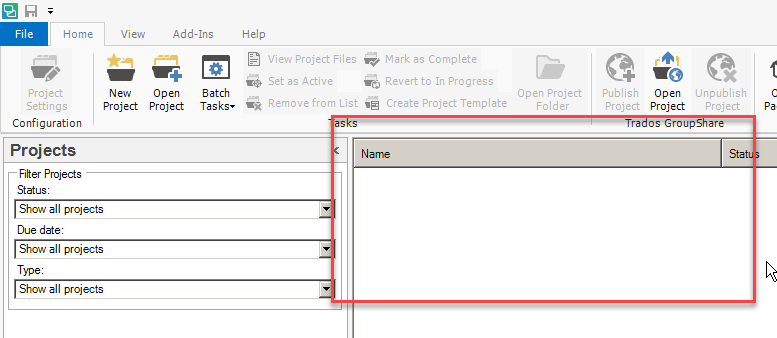
You press the OK button (there is nothing else to press here anyway). Trados Studio starts as usual, but the list of projects in the Projects section is pristine: there is not a single project. Trados Studio itself works great though, even your custom shortcuts are still there.
The error can be caused by several reasons. SDL described them in this article. Most likely, Trados Studio is not to blame. A general reason is that something has happened to the project files that were already imported into Trados Studio. When starting, it tried to download them but failed due to some reason.
A list containing possible reasons is provided below, from the easy to the complicated.
1. The easiest thing that could have happened: you’ve deleted, renamed, or replaced the folder containing the project files. It’s no wonder that Trados Studio failed to download them—it just couldn’t find them in the accustomed place.
Solution: close Trados Studio, bring the files back to the folder where they were (if they’re not lost for good), and then start Trados Studio again. After that, you’ll have to go through the files of all the projects you need and click the files with the SDLPROJ extension in each of them. These are files with settings storing information on what files belong to the project and where they are—Trados Studio will catch them and “get its memory back.”
2. Another possible reason: something has blocked access to the files: they are where they have to be, but Trados Studio can’t reach them. Oftentimes, it turns out to be a cold-blooded antivirus program that had found the project files suspicious by mistake.
The solution is obvious: “comfort” your antivirus or find out which program had blocked access to the files.
3. The third reason: the project files are physically damaged. This case is the most difficult one as this issue has nothing to do with software but comes from hardware.
Solution: bring your disk “back to life.”
Recommended content
How to Fix the “Error processing command line arguments” Issue in Trados Studio

How to use the ampersand and how is it different from and

How to split a large Trados Studio file into multiple parts

T9N, L10N, I18N, G11N, C13N, M17N, V8N