How to Configure the Enter Key Behavior in Passolo
Passolo software (also known as SDL Passolo) is one of the most user-friendly tools for software localization. However, even experienced Passolo translators may not realize that the Enter key behavior in this program can be customized. Adjusting this setting helps you prevent unwanted automatic confirmation of segments, maintain flexibility during translation, and improve your overall efficiency when working with Passolo translation projects.
Default behavior of the Enter key in Passolo
By default, pressing the Enter key in Passolo does more than just move to the next line—it performs several automatic actions at once. If you’ve made any changes to a segment, pressing Enter will:
- Save the translation to the translation memory
- Mark the segment as Validated
- Change the text color to black in the translation window.
From a technical point of view, this is convenient—you can instantly see that a segment is marked as “ready.” But for Passolo translators who prefer to review or adjust text later, this default Enter key behavior can create difficulties and reduce flexibility during editing.
Why you might want to change the default behavior
In SDL Passolo, automatic validation isn’t always desirable. When every edited entry becomes “confirmed” immediately:
- It’s harder to distinguish between translated segments and pre-translated ones (those inserted automatically from translation memory).
- Post-editing or further review becomes more complicated since the Validated status implies that the text is final.
- There’s a higher risk of overlooking errors or inconsistent terminology.
That’s why many Passolo translators prefer to configure the Enter key behavior so that pressing Enter sets the segment status to For Review (usually displayed in blue). This indicates that the translation still needs attention—and the color difference in the Passolo translation window makes it easy to identify such segments at a glance.
Step-by-step guide: changing Enter key behavior
To change the Enter key behavior in Passolo in just a few clicks:
- Open the Passolo software and start the project you want to adjust.
- Go to File → Options. This is the main menu for environment configuration.
- In the left pane, select Translation Window. This section controls most settings that affect the appearance and functionality of the translation workspace.
- Find the Validate strings when edited option and uncheck the box.
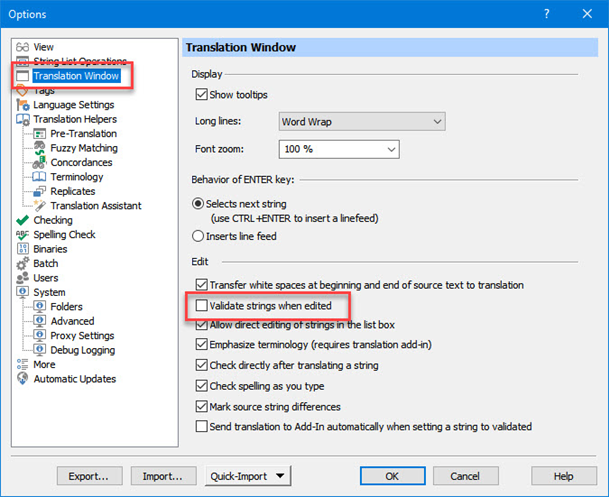
- Click OK to save your changes.
Now, pressing Enter will no longer automatically validate the segment. Instead, its status remains For Review, and the text stays blue. This small tweak helps you visually separate verified translations from those still under revision—a must-have for organized and efficient Passolo translation work.
Additional tips for Passolo translators
Customizing Enter key behavior in SDL Passolo is a simple yet powerful way to enhance your translation workflow. By turning off automatic validation, you avoid confusion between translated and auto-filled entries, improve quality control, and gain more flexibility when managing multiple text segments.
If you frequently work on large or collaborative Passolo translation projects, configuring this option can make a noticeable difference in productivity and accuracy. You’ll spend less time double-checking automatically confirmed strings and more time refining the quality of your work.
And remember—the Passolo software offers many other useful customization options. For example, you can enable and configure spell checking, export text from a file to update the translation database in Trados, memoQ, or any modern CAT tool, and even perform automatic quality checks using Xbench, QA Distiller, or other QA tools.
By mastering small configuration tweaks like the Enter key behavior, every Passolo translator can transform their workflow into a smoother, faster, and more controlled localization process.
See more interesting posts in our Telegram channel.
Recommended content
How the Ctrl + G Key Combination Works in Different Programs

How to Get Rid of Annoying Pop-Ups in Word
Keyboard Shortcuts to Launch Programs in Windows

How to Insert a Tab Character in a Word Table