our blog
How to Enable and Configure Spelling Check in Wordfast
19 May 2017
Wordfast can check spelling using the Word spelling engine
Recently, we discussed how to check spelling in Word and memoQ. This post is devoted to Wordfast.
In Wordfast, please select Edit > Preferences. In the dialog window that appears please click Spelling on the left pane:
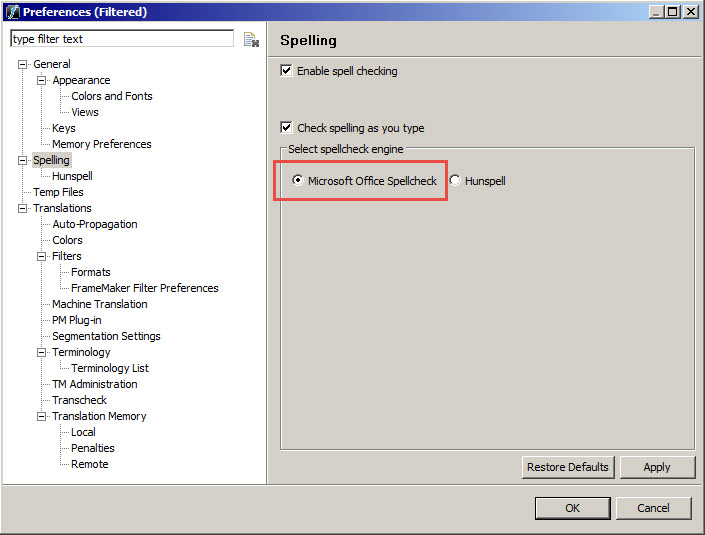
The screenshot is made in somewhat obsolete version 2.3.0, but the way to configure the spell-checking is similar in the subsequent versions.
On the right pane, select Microsoft Office Spellcheck, then press OK. After that, Wordfast will check spelling with the Microsoft Word engine.
Recommended content

How to Fix the “The Specified Project Name Is Invalid” Error in Trados Studio
Troubleshooting another Trados Studio error When creating a project in Trados Studio, you may see the following message: The specified project name is invalid. The name should not contain any invalid characters such as: \ / : * ? ” < > | If this happens even though the project name does not appear to […]
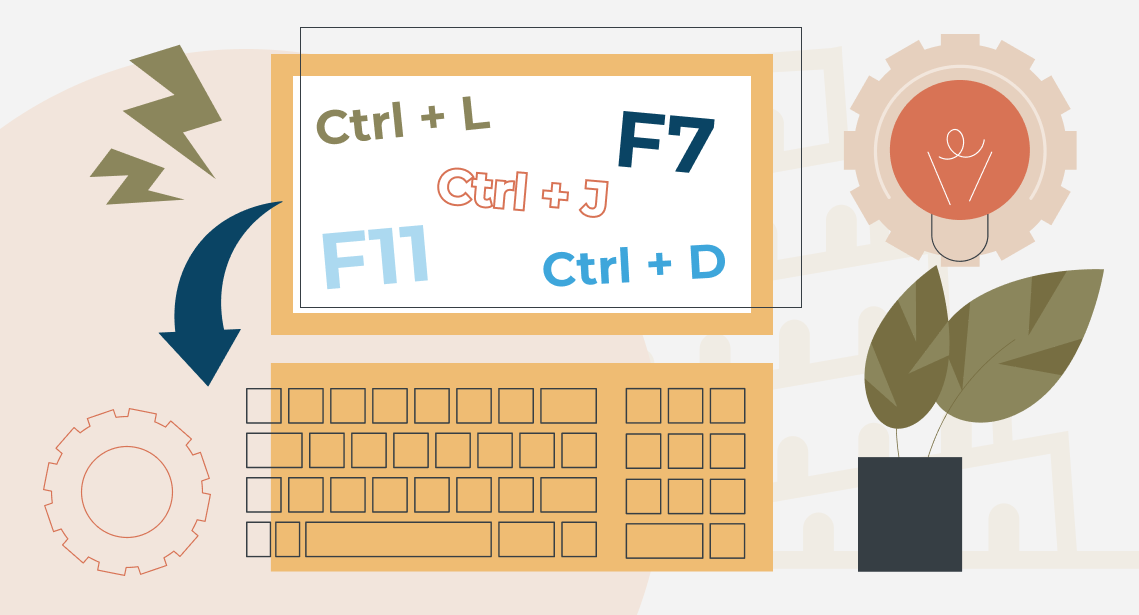
Useful Keyboard Shortcuts for Browsers
Handy keyboard shortcuts One sign of a proficient computer user is that they regularly use keyboard shortcuts. If something can be done with either the keyboard or the mouse, they will usually choose the keyboard. Most people primarily use a mouse when browsing the web. However, many browser actions can be performed just as easily—and, […]

How to Fix the “Error processing command line arguments” Issue in Trados Studio
About another Trados Studio issue Another Trados Studio quick fix: If you see this error dialog, it’s resolved the same way as the Access to the path … is denied error.

How to use the ampersand and how is it different from and
A little bit on how & is different from and The ampersand is a ligature that the Latin conjunction et, which means and, has been transformed into. Once upon a time, the ampersand was even considered the 27th letter of the alphabet. When pronouncing letters in the alphabet, it was ended with the words and […]

How to split a large Trados Studio file into multiple parts
About splitting a large file into multiple parts How to split a large Trados Studio file into several parts: ➕ The plugin is free, simple, and effective. Trados Studio is not needed at all. ➖ It is better to use it only for splits, there are problems with merges. * * * ➕ Always works […]

