How to Get Rid of Annoying Pop-Ups in Word
Microsoft Word is one of the most popular tools for writing, editing, and formatting documents. However, many users eventually face the same frustration: constant Word pop-ups that interrupt workflow when opening or closing files. These notifications may include error messages, template warnings, or add-in alerts.
The good news is that in most cases, you can remove up to 90% of these issues with a few simple steps. This guide explains why these pop-ups appear and how to get rid of them on both Windows and macOS, even if you have only basic computer skills.
Types of pop-ups and their reasons
Before fixing the problem, it helps to understand what causes these pop-ups. Here are the most common types:
1. Template-related warnings
Word relies on template files to load default settings. One of the most crucial ones is Normal.dotm. If this template becomes corrupted or a temporary copy remains after a crash, Word may show repeated pop-ups each time it opens.
2. Add-In notifications
Different programs, like grammar checkers or productivity tools, install add-ins that automatically run when Word starts. If one of these add-ins fails or generates temporary files, Microsoft Word may show alerts about unsafe macros, unavailable templates, or loading failures.
3. Temporary file conflicts
Word often creates temporary files that begin with the characters ~$. If Word crashes when closing or another program is accessing these templates, the temporary files remain, causing repeated messages.
4. Security Pop-ups
Security-related pop-ups in Word (about macros, protected views, or blocked content) appear when Word detects potentially unsafe documents or outdated add-ins.
Most of these issues can be resolved by cleaning template folders and removing problematic temporary files.
Step-by-step guide to disable or manage Word Pop-ups in Windows and Mac
Let’s go through a practical and straightforward process suitable even for beginners. Each step gradually eliminates the most frequent sources of Word pop-ups.
Step 1: close Word and any programs that use it
Before making changes, ensure that Word is completely closed. This includes:
- The Word application itself
- Any document windows
- Other programs using Word’s spell checker or template engine, like some CAT tools or grammar checkers
If any such software is running, Word may recreate temporary files while you’re trying to remove them.
Step 2: enable Hidden file viewing in Windows
Many important Word folders are hidden by default. To delete unnecessary files, you must enable hidden file visibility:
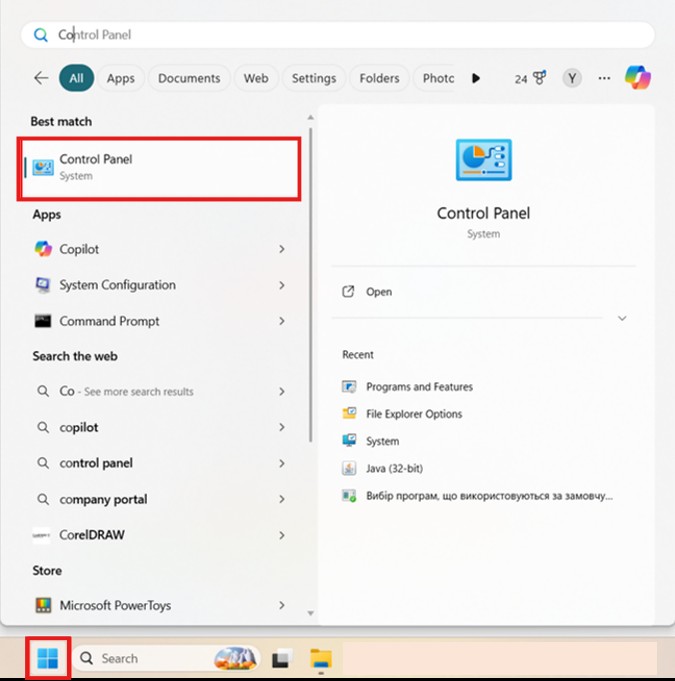
- Open Start → Control Panel:
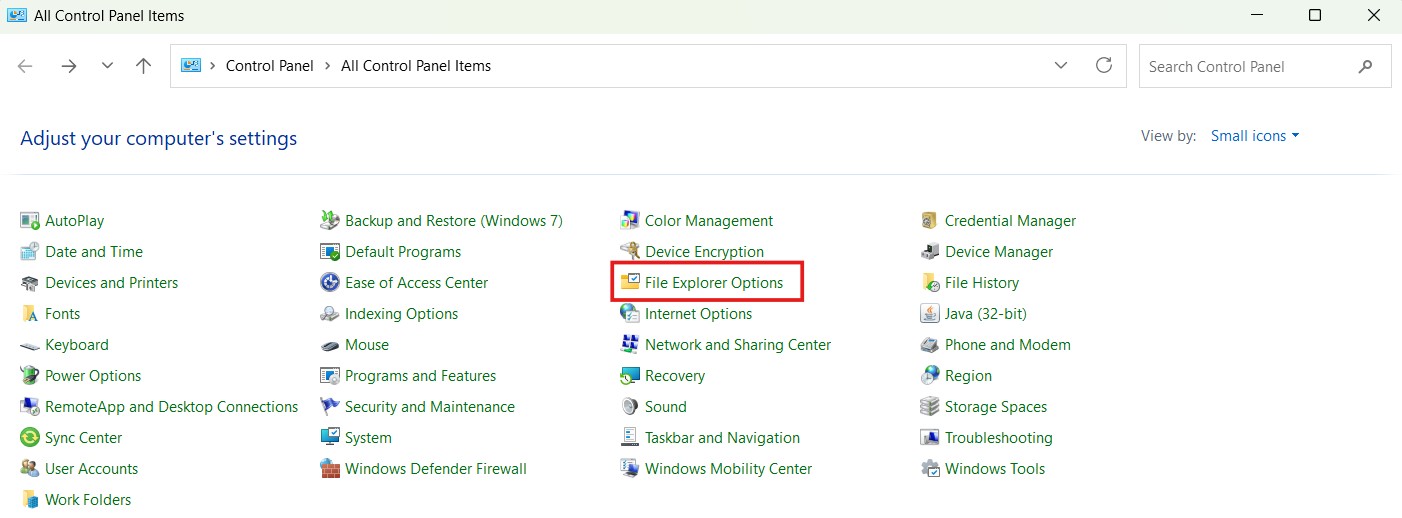
2. Select File Explorer Options:
- Go to the View tab.
- Check Show hidden files, folders, and drives.
- Click OK.
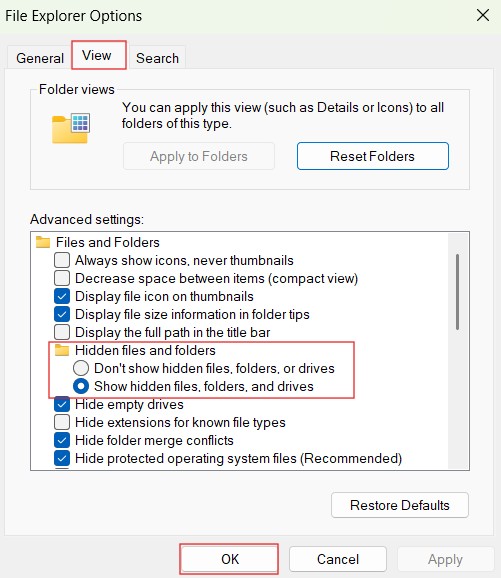
Enabling this feature allows you to check the system directories where Word stores templates and add-ins.
For Mac users: Finder shows most folders by default, but if needed, press Cmd + Shift + . to toggle hidden files.
Step 3: remove temporary files in the Templates folder
The most common source of annoying pop-ups is a corrupted Normal.dotm temporary file.
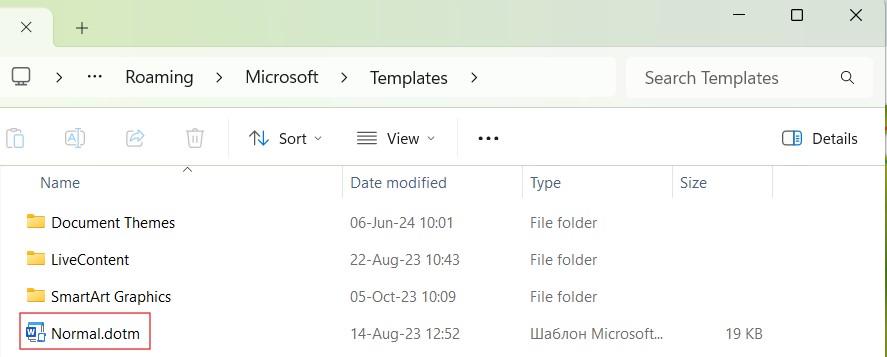
Navigate to:
C:\Users\<YourUser>\AppData\Roaming\Microsoft\Templates
Look for this file:
- ~$Normal.dotm — this is a temporary copy created when Word is open.
If you find it, delete it. Removing this temp file often resolves pop-ups related to the Normal template loading or saving incorrectly.
Step 4: clean start-up template files (auto-loaded add-ins)
Some add-ins automatically load whenever you start Word. Their temporary files also begin with ~$ and may cause repeated warnings if they become corrupted.
Open:
C:\Users\<YourUser>\AppData\Roaming\Microsoft\Word\STARTUP
Then remove all temporary files whose names start with ~$. These files are safe to delete and will be recreated by Word if needed.
Step 5: remove temporary files added by third-party programs
Many external applications place template files into the main Microsoft Office folder. If these templates malfunction, Word may show pop-ups about missing components, disabled macros, or blocked content.
Go to:
C:\Program Files (x86)\Microsoft Office\Office##
Replace ## with your Office version (e.g., Office16, Office15).
Delete all unnecessary temporary template files beginning with ~$. These files do not affect Word’s functionality and often remove conflicts that cause recurring alerts.
Step 6: restart Word and check for pop-ups
After cleaning all folders:
- Relaunch Microsoft Word.
- Open a blank document.
- Open an existing document.
- Close Word completely.
If the pop-ups were caused by corrupt templates or temporary file conflicts, this issue should now be resolved.
Step 7: review add-ins and security settings (optional)
If you still see warnings, the cause may be active add-ins or macro security settings.
Check add-ins
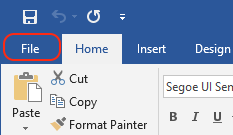
- Go to File:
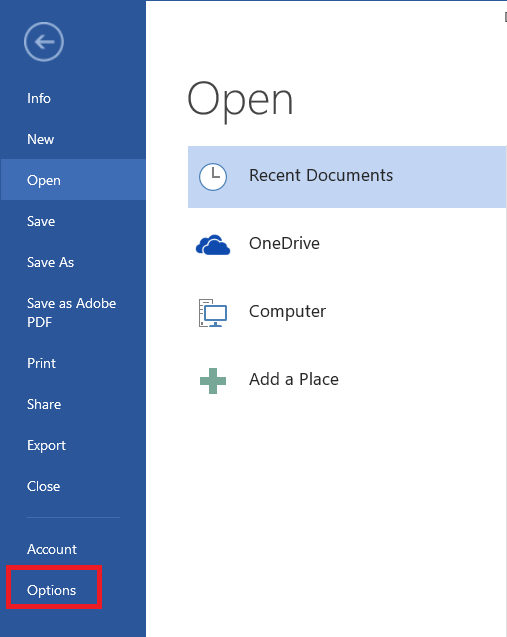
- Click on Options:
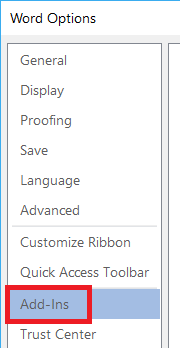
- Select Add-Ins:
- Review the list of installed add-ins.
- Disable suspicious or unnecessary add-ins.
- Restart Word.
This step helps remove popups related to failed add-in initialization or outdated software.
Adjust security settings cautiously
- On the File tab, click Options.
- Click Trust Center, and then click Trust Center Settings:
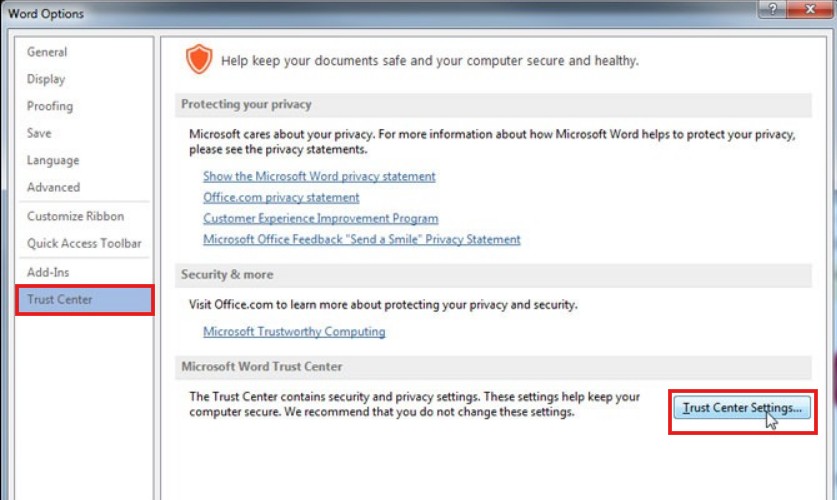
- Check these useful settings:
- On the Macro Settings tab, check if Disable all macros with notification option is selected; it’s the default and the safest one:
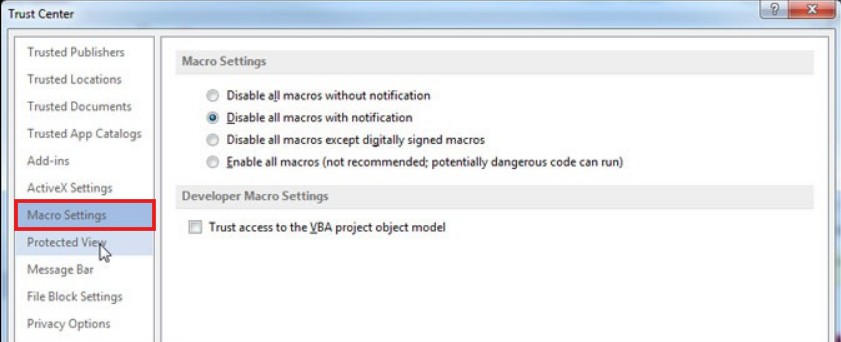
5. On the Protected View tab, check all the Enable Protected View options, especially for files originating from the Internet:
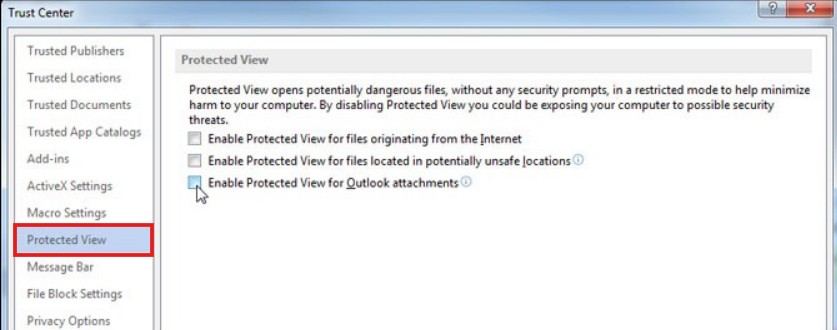
6. Check the Trusted Locations tab to set up your work folders.
Adjust only if you understand the impact; security pop-ups are meant to protect your data.
When to consider reinstalling or repairing Word
If you continue receiving Word pop-ups despite cleaning templates and reviewing add-ins, your installation may be corrupted. Windows allows you to repair Office:
- Go to the Control Panel and select Programs and Features option:
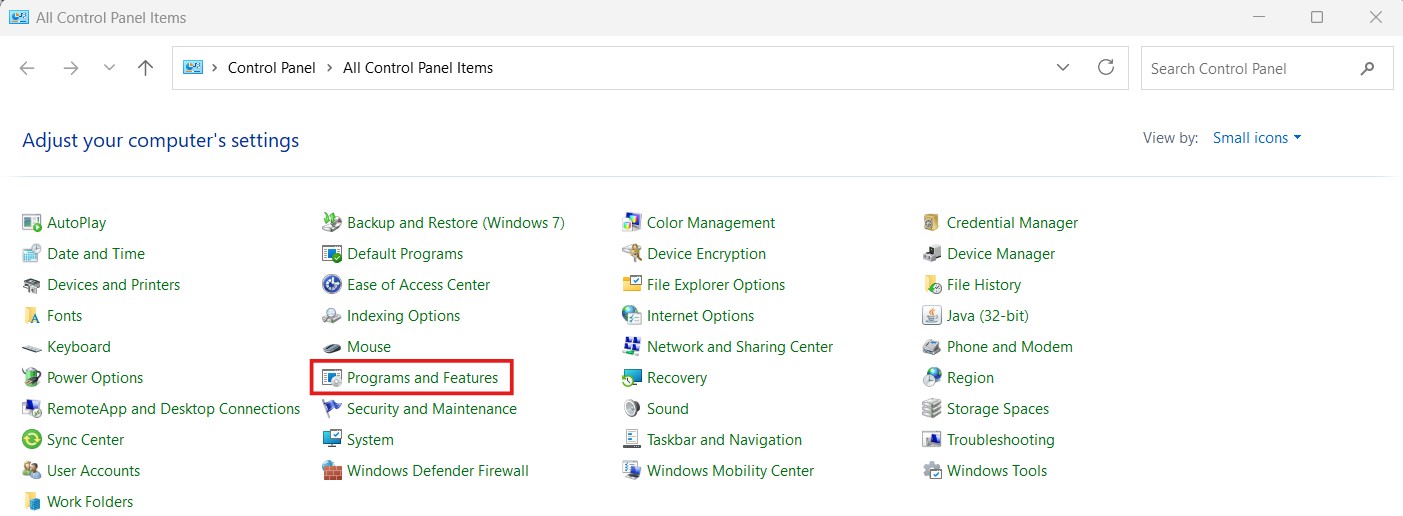
- Find the Microsoft Office, right-click on it, and select the Change option:

- In the window that opens, select the Quick Repair option and follow the wizard instructions.
Note: Most users won’t need this, but it’s an effective final step.
Final thoughts
Most Word pop-ups appear due to corrupted temporary files, outdated templates, or malfunctioning add-ins. By removing unnecessary files named ~$* and checking your template folders, you can fix most issues in less than 10 minutes, even with a basic technical background.
This simple maintenance procedure helps keep Microsoft Word stable, secure, and free from the annoying interruptions that disrupt your work.
More helpful Word tips
Recommended content
How the Ctrl + G Key Combination Works in Different Programs
How to Configure the Enter Key Behavior in Passolo
Keyboard Shortcuts to Launch Programs in Windows
How to Insert a Tab Character in a Word Table