our blog
Reasons Why Your Translation Volume May Be Different from the Client’s One
23 February 2023
The volume of translation for the customer and the translator is not always the same
There are times when a client sends you 5K words for translation, but your CAT tool thinks they gave you 10K (the volume of technical translations is usually measured in words). No one wants to do extra work. Before you turn on the panic mode, go through this list.
* * *
First and foremost, the problems of possible misunderstanding:
- Are all the documents in the package included in your assignment? Maybe some of them were assigned to another translator?
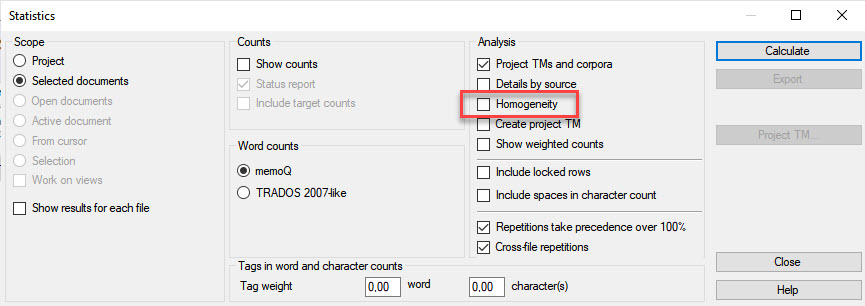
- Do you and the client have the same analysis settings? For example, in memoQ, the Homogeneity flag strongly influences analysis results.
- Is there any TM in the project at all? Perhaps the client simply forgot to add it when creating the package.
* * *
If this does not help, there may be problems with the TM:
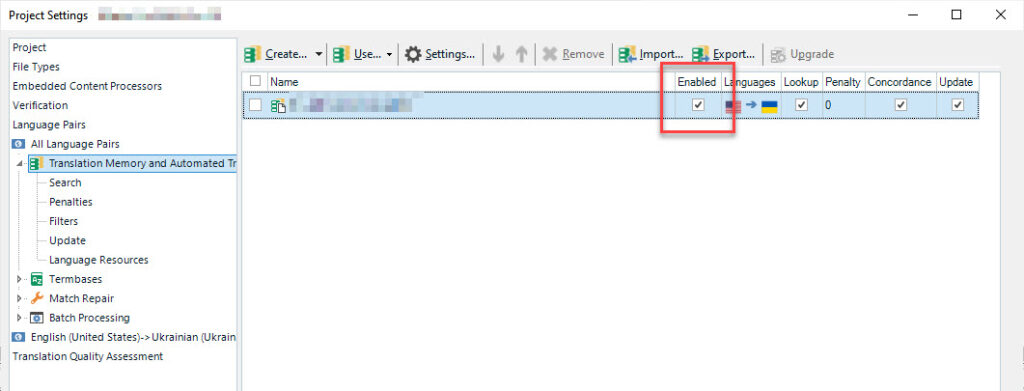
- If there is a TM, is it activated? For example, in Trados Studio, look at the Enabled checkbox.
- If the TM is online, is the TM server enabled and are you connected to it? In memoQ, active online TMs are highlighted in yellow.
- Is the name of the TM file too long? If it is, disconnect the TM, give its file a shorter name, and reconnect it.
- Is the path to the TM file too long? If it is, disconnect the TM, move its file closer to the root of the disk, and reconnect it.
- Do the TM file name and path contain characters of unusual languages (acute accents, umlauts, hieroglyphs)?
- Is the TM file blocked by anything? Does the file have a Read only attribute? Is it being scanned by your antivirus? Is the file in the cloud storage (Dropbox, OneDrive, Google Drive)?
- Is everything okay with the TM file itself? Does it need to be re-indexed (Trados Studio) or restored (memoQ)?
- The scope of the translation may depend on the version of the CAT tool. Compare the versions of the programs—yours and the client's one.
If this does not work as well, you will have to send screenshots to the client.
Recommended content

How to Fix the “LNG Is Missing” Error in MultiTerm
Troubleshooting a MultiTerm error If the LNG is missing message repeatedly appears when you launch SDL MultiTerm or work with terms—even though the program continues to function normally—there is a 99% chance that Trados Studio and MultiTerm are set to different interface languages on your computer. Set both programs to the same language, and the […]

How to Fix the “The Specified Project Name Is Invalid” Error in Trados Studio
Troubleshooting another Trados Studio error When creating a project in Trados Studio, you may see the following message: The specified project name is invalid. The name should not contain any invalid characters such as: \ / : * ? ” < > | If this happens even though the project name does not appear to […]
Useful Keyboard Shortcuts for Browsers
Handy keyboard shortcuts One sign of a proficient computer user is that they regularly use keyboard shortcuts. If something can be done with either the keyboard or the mouse, they will usually choose the keyboard. Most people primarily use a mouse when browsing the web. However, many browser actions can be performed just as easily—and, […]
How to Fix the “Error processing command line arguments” Issue in Trados Studio
About another Trados Studio issue Another Trados Studio quick fix: If you see this error dialog, it’s resolved the same way as the Access to the path … is denied error.

How to use the ampersand and how is it different from and
A little bit on how & is different from and The ampersand is a ligature that the Latin conjunction et, which means and, has been transformed into. Once upon a time, the ampersand was even considered the 27th letter of the alphabet. When pronouncing letters in the alphabet, it was ended with the words and […]

