our blog

How to Turn On the Display of Hidden Text in Trados Studio

How to Turn On the Display of Hidden Text in Trados Studio - 1

The hidden text allows us to rectify hidden issues

Seasoned translators know that while working with a text, they should display hidden text: it often conceals problems that are not visible in an “ordinary” text.

We’ve already spoken of how to display hidden text in Word and why it is worth doing that. Today we’ll learn how to do it in Trados Studio.

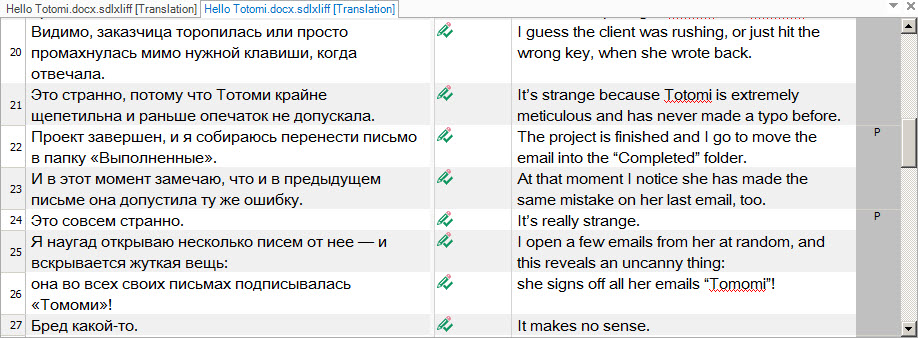
An “ordinary” text in Trados Studio looks something like this:
How to Turn On the Display of Hidden Text in Trados Studio - 2

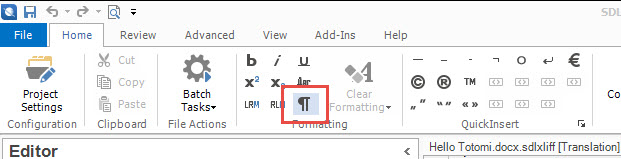
The Home tab contains the same key you see in Word, but the name here is different—Show Whitespace Characters:
How to Turn On the Display of Hidden Text in Trados Studio - 3

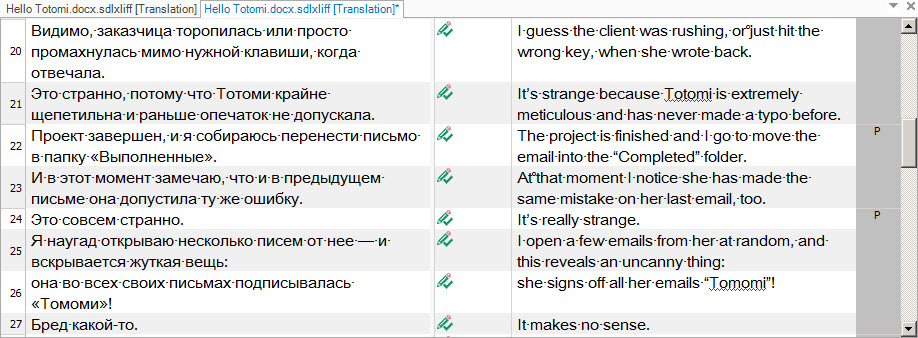
After pressing the key, you’ll start to see hidden characters in the text—all “ordinary” spaces get replaced with dots, and non-breaking spaces—with circles:
How to Turn On the Display of Hidden Text in Trados Studio - 4

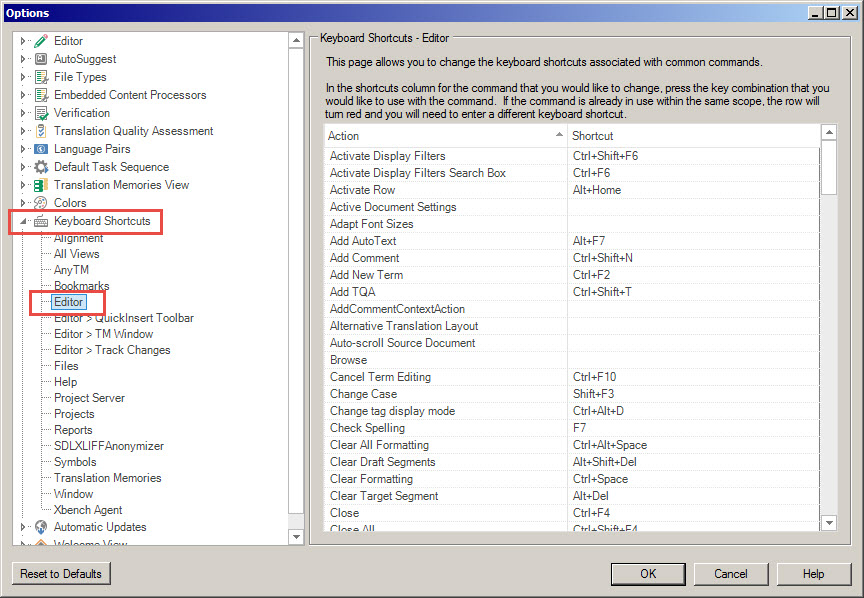
In Word, you can show or hide characters with the help of the Ctrl + Shift + 8 key combination. In Trados Studio, it doesn’t work by default, but it can be activated manually. To do this, select File > Options. The Options dialog box appears. On the left panel of the box, click Keyboard Shortcuts, then choose Editor:
How to Turn On the Display of Hidden Text in Trados Studio - 5

Find Show Whitespace Characters in the list of commands on the right panel of the box, place the cursor inside a cell of the Shortcut column, press Ctrl + Shift + 8 (or you can choose any key combination that you would like to use—but be sure that it’s not in use for another command in Trados Studio) and select ОК.

Recommended content

How to Turn On the Display of Hidden Text in Trados Studio - 6

How to Configure the Enter Key Behavior in Passolo

Passolo software (also known as SDL Passolo) is one of the most user-friendly tools for software localization. However, even experienced Passolo translators may not realize that the Enter key behavior in this program can be customized. Adjusting this setting helps you prevent unwanted automatic confirmation of segments, maintain flexibility during translation, and improve your overall […]
How to Turn On the Display of Hidden Text in Trados Studio - 7

Keyboard Shortcuts to Launch Programs in Windows

Many Windows users don’t realize that simple Windows hotkeys can open the apps they need faster than clicking through menus. If you regularly work with office programs such as Word, Excel, or Outlook, mastering Windows keyboard commands can save you tens of minutes every day. Basic keyboard shortcuts to launch programs Windows 10 and Windows […]
How to Turn On the Display of Hidden Text in Trados Studio - 8

How to Insert a Tab Character in a Word Table

Most Microsoft Word users know that the Tab key creates an indent in the text. When you place the cursor in a regular paragraph and press Tab, the program inserts a tab character — a hidden formatting mark that helps align text precisely. This basic but powerful Word formatting tool allows you to create structured lists, […]
How to Turn On the Display of Hidden Text in Trados Studio - 9

How to Translate TXLF Wordfast Files in Trados Studio

Trados Studio can be used to translate .txlf Wordfast files If you do not have or do not like or do not work in Wordfast, you can translate its files in Trados Studio. Trados Studio knows well how to process different file types (Word, Excel, HTML and many, many others). To teach your Trados Studio to work with TXLF Wordfast files means to […]
How to Turn On the Display of Hidden Text in Trados Studio - 10

How to Fix the “Argument ‘0’ is out of range” Error in Trados Studio

When working in Trados Studio, translators may sometimes encounter a confusing message: Argument '0' is out of range. It should be between 1 and 2147483647. Parameter name: <...> At first glance, this looks like pure technical jargon—just “something wrong with numbers.” However, in practice, this Trados Studio error can block saving and make it seem […]