our blog
How to Convert a Table into Text in Microsoft Word
02 August 2017
Word easily converts a table into text
The main “problem” with this operation is not to perform the converting itself, but to find when the necessary button is :)
1. Select the table you want to convert into text or place the text cursor into any of its cells. On the ribbon, the Layout menu appears. (It is missing when the text cursor is placed outside a table.)
2. Select Layout > Convert to Text.
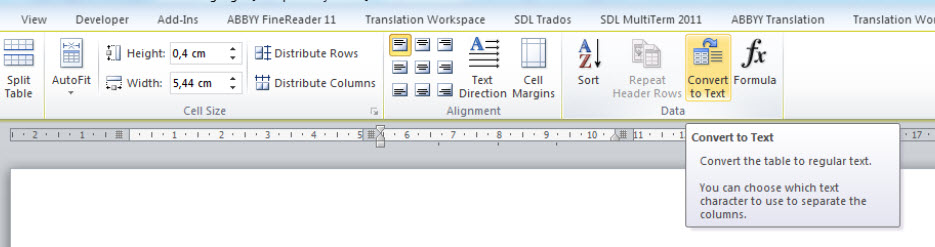
3. A dialog box appears where you can choose how cells are divided in the resulting text: with paragraph signs, tabs, semicolons, or others (you can pick yourself).
Recommended content

How to Fix the “LNG Is Missing” Error in MultiTerm
Troubleshooting a MultiTerm error If the LNG is missing message repeatedly appears when you launch SDL MultiTerm or work with terms—even though the program continues to function normally—there is a 99% chance that Trados Studio and MultiTerm are set to different interface languages on your computer. Set both programs to the same language, and the […]

How to Fix the “The Specified Project Name Is Invalid” Error in Trados Studio
Troubleshooting another Trados Studio error When creating a project in Trados Studio, you may see the following message: The specified project name is invalid. The name should not contain any invalid characters such as: \ / : * ? ” < > | If this happens even though the project name does not appear to […]
Useful Keyboard Shortcuts for Browsers
Handy keyboard shortcuts One sign of a proficient computer user is that they regularly use keyboard shortcuts. If something can be done with either the keyboard or the mouse, they will usually choose the keyboard. Most people primarily use a mouse when browsing the web. However, many browser actions can be performed just as easily—and, […]

How to Fix the “Error processing command line arguments” Issue in Trados Studio
About another Trados Studio issue Another Trados Studio quick fix: If you see this error dialog, it’s resolved the same way as the Access to the path … is denied error.

How to use the ampersand and how is it different from and
A little bit on how & is different from and The ampersand is a ligature that the Latin conjunction et, which means and, has been transformed into. Once upon a time, the ampersand was even considered the 27th letter of the alphabet. When pronouncing letters in the alphabet, it was ended with the words and […]

