our blog
How to Copy the Format of the Text in Word
03 July 2016
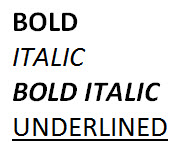
You can copy and apply formats like you copy and paste text
Did you know? Just as you copy and paste the text, you can copy and "paste" its format. The only change is you need to add the Shift key to the same shortcuts:
- Copy text: Ctrl + C
- Copy format: Ctrl + Shift + C
- Paste text: Ctrl + V
- Paste format: Ctrl + Shift + V
In other words, you can copy, for example, “COURIER NEW + bold + underlined,” and then apply (“paste”) this format to another text fragment.
Use this little but useful hint!
Recommended content

File Formats That Compress Well in ZIP Archives
Useful information about file formats As we already know, there is little point in archiving certain file formats because they do not compress well. On the other hand, some formats compress very efficiently: Files that store plain text, including TXT and CSV. Older Microsoft Office formats whose extensions do not end in X: Subtitle files, such […]

How to fix the «Failed to load project from …» error in Trados Studio
About another error in Trados Studio Let’s analyze the Trados Studio error: Failed to load project from … There is an error in XML document (X, Y). Unexpected end of file has occurred. Unexpected end of file while parsing Name has occurred. The error is caused by a violation of the structure of the SDLPROJ […]

A Few Abbreviations Every Technical Translator Should Know
Useful information for technical translators Here is are a few abbreviations you will encounter regularly if you work in technical translation:

How to Prevent Data Loss If Your CAT Tool Crashes
Useful tips about working with CATs If your CAT tool crashes and there is a risk of losing the completed portion of your translation, the first priority is to preserve the work you have already done. Only after securing the data should you attempt to fix the issue. Otherwise, you may have to redo the […]

Why Word May Refuse to Check Spelling
Useful tips about working in Word Why Word may refuse to check spelling: Go to File → Options → Proofing, then select the Check spelling as you type checkbox and clear the Hide spelling errors in this document only checkbox (see image). Select the text you want to check, then verify that the correct language […]

