our blog

How to Configure Trados Studio for Work After Installation

How to Configure Trados Studio for Work After Installation - 1

Before working with Trados Studio, “sharpen” it to match your tasks!

If you have installed Trados Studio or had it installed, it’s worth changing several default settings immediately before you start working.

  • Turn off automatic update when running Trados Studio

It’s worth working with the latest version of Trados Studio. With every update, developers get rid of errors and improve security. And if you want the application on your PC to receive the latest updates constantly, you’d better leave the automatic update on.

However, if you don’t fancy paying for updates if you’re okay with the current version of the application, or if you don’t want to bother yourself with installing updates, turn off the automatic update.

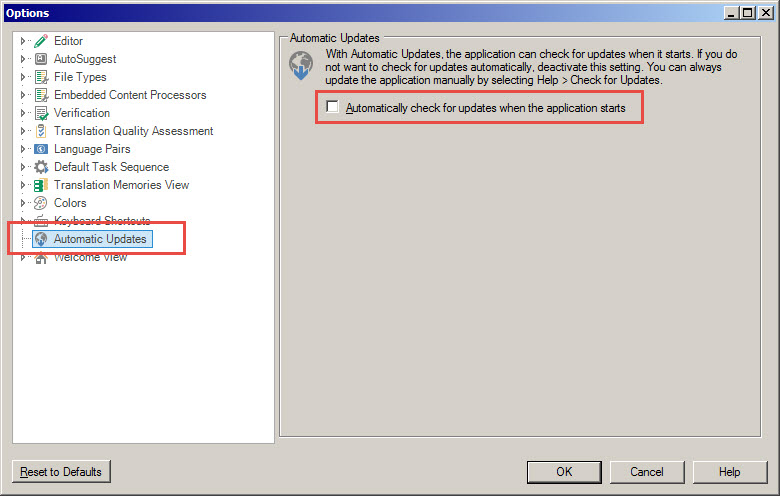
How to do it: go to File > Options > choose Automatic Updates on the left panel > uncheck Automatically check for updates when the application starts on the right panel:
How to Configure Trados Studio for Work After Installation - 2

And press ОК.

  • Turn on the spell-checking

There is no point in explaining why it must be done: in the modern world, spelling mistakes in translation are atavisms. And we discussed how to do it here.

  • Set display scale

Why it is important and how to do it we discussed here.

  • Turn off automatic error correction

Why it must be done we discussed here, and how it can be done—here.

  • Configure the correct tag display

It was discussed in this post.

  • Turn on hidden text (desirably)

What hidden text looks like is described here, and how to display it—here.

* * *

Now you are fully equipped for a fight!

Recommended content
How to Configure Trados Studio for Work After Installation - 3

How to fix the «Failed to load project from …» error in Trados Studio

About another error in Trados Studio Let’s analyze the Trados Studio error: Failed to load project from … There is an error in XML document (X, Y). Unexpected end of file has occurred. Unexpected end of file while parsing Name has occurred. The error is caused by a violation of the structure of the SDLPROJ […]
How to Configure Trados Studio for Work After Installation - 4

A Few Abbreviations Every Technical Translator Should Know

Useful information for technical translators Here is are a few abbreviations you will encounter regularly if you work in technical translation:  
How to Configure Trados Studio for Work After Installation - 5

How to Prevent Data Loss If Your CAT Tool Crashes

Useful tips about working with CATs If your CAT tool crashes and there is a risk of losing the completed portion of your translation, the first priority is to preserve the work you have already done. Only after securing the data should you attempt to fix the issue. Otherwise, you may have to redo the […]
How to Configure Trados Studio for Work After Installation - 6

Why Word May Refuse to Check Spelling

Useful tips about working in Word Why Word may refuse to check spelling: Go to File → Options → Proofing, then select the Check spelling as you type checkbox and clear the Hide spelling errors in this document only checkbox (see image). Select the text you want to check, then verify that the correct language […]
How to Configure Trados Studio for Work After Installation - 7

How to replace “straight quotes” with «guillemets» in Word

Useful tips about working in Word We already know how to quickly replace straight quotes with guillemets in Trados Studio and memoQ. Sometimes this has to be done not in the CAT tool but directly in the “monotext,” the text in the target language in Word. The easiest way to do this is to use […]