our blog

How to Configure Trados Studio for Work After Installation

How to Configure Trados Studio for Work After Installation - 1

Before working with Trados Studio, “sharpen” it to match your tasks!

If you have installed Trados Studio or had it installed, it’s worth changing several default settings immediately before you start working.

  • Turn off automatic update when running Trados Studio

It’s worth working with the latest version of Trados Studio. With every update, developers get rid of errors and improve security. And if you want the application on your PC to receive the latest updates constantly, you’d better leave the automatic update on.

However, if you don’t fancy paying for updates if you’re okay with the current version of the application, or if you don’t want to bother yourself with installing updates, turn off the automatic update.

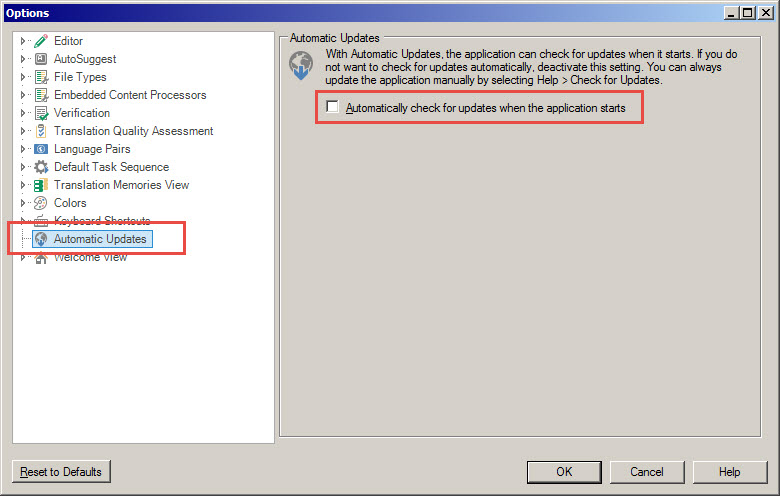
How to do it: go to File > Options > choose Automatic Updates on the left panel > uncheck Automatically check for updates when the application starts on the right panel:
How to Configure Trados Studio for Work After Installation - 2

And press ОК.

  • Turn on the spell-checking

There is no point in explaining why it must be done: in the modern world, spelling mistakes in translation are atavisms. And we discussed how to do it here.

  • Set display scale

Why it is important and how to do it we discussed here.

  • Turn off automatic error correction

Why it must be done we discussed here, and how it can be done—here.

  • Configure the correct tag display

It was discussed in this post.

  • Turn on hidden text (desirably)

What hidden text looks like is described here, and how to display it—here.

* * *

Now you are fully equipped for a fight!

Recommended content

How to Configure Trados Studio for Work After Installation - 3

How Machine Translation Works

A metaphor for the machine translation process Imagine this: you are sitting in a room. It is sparsely furnished, with nothing but a desk, a chair, and an enormous bookcase. The shelves are packed with books, but every book has exactly the same cover, making them impossible to tell apart. You are good at your […]
How to Configure Trados Studio for Work After Installation - 4

How to Fix the “Failed to Save Target Content. Cannot Find File Type Definition” Error in Trados Studio

Another Trados Studio error The Failed to save target content error may occur when you try to create a “clean” file—that is, remove the source text from the translated file and leave only the translation using the Clean Up feature. This most commonly happens when a Trados Studio package was created on one computer, but […]
How to Configure Trados Studio for Work After Installation - 5

The Easiest Way to Identify the Language of a Text
Tips for identifying a text’s language The easiest way to identify the language of a text is to paste it into Google Translate and click Detect language. If Google Translate is unavailable, you can try identifying the language manually by looking for distinctive letters and symbols: You can find more information here.
How to Configure Trados Studio for Work After Installation - 6

How to Fix the “LNG Is Missing” Error in MultiTerm
Troubleshooting a MultiTerm error If the LNG is missing message repeatedly appears when you launch SDL MultiTerm or work with terms—even though the program continues to function normally—there is a 99% chance that Trados Studio and MultiTerm are set to different interface languages on your computer. Set both programs to the same language, and the […]
How to Configure Trados Studio for Work After Installation - 7

How to Fix the “The Specified Project Name Is Invalid” Error in Trados Studio

Troubleshooting another Trados Studio error When creating a project in Trados Studio, you may see the following message: The specified project name is invalid. The name should not contain any invalid characters such as: \ / : * ? ” < > | If this happens even though the project name does not appear to […]